Showing posts with label CSP. Show all posts

Monday, 19 February 2018

What's new with Windows AutoPilot?

There have been a few recent developments with Windows AutoPilot so I wanted to take a closer look. You can read my original experience with AutoPilot here

New version of PoSH script

Version 1.3 of the Get-WindowsAutoPilotInfo script has been published

I decided to have a look through the versions to see the history of changes

V1.0
The original script was version 1.0

Syntax:

.\Get-WindowsAutoPilotInfo.ps1 -ComputerName <ComputerName> -OutputFile .\ComputerName.csv

Output:


Details captured:
  • Device Serial Number
  • Windows Product ID
  • Hardware Hash

V1.1
The Append switch was added in version 1.1
Additional computer details are appended to the output file instead of overwriting the file.

Syntax:

.\Get-WindowsAutoPilotInfo.ps1 -ComputerName <ComputerName> -OutputFile .\ComputerName.csv -append

Output:


V1.2
The Credential switch was added in version 1.2
This allowed us to add the credentials necessary to connect to remote computers. This switch is not supported when gathering details from the local computer.


V1.3
The Partner switch was added in version 1.3
This allows us to specify that additional details required by the Partner Center are gathered (for use by CSPs). Presumably this will also be required when the OEM Vendors start to upload the computer details on our behalf.

Syntax:

.\Get-WindowsAutoPilotInfo.ps1 -ComputerName <ComputerName> -OutputFile .\ComputerName.csv -Partner

Output:


Details captured:
  • Device Serial Number
  • Windows Product ID
  • Hardware Hash
  • Manufacturer Name
  • Device model

SCCM Report

The second development involves ConfigMgr. A new report has been introduced in 1802 TP. The "Windows AutoPilot Device Information" report lists all the information that we would normally gather using the PoSH script.


I hope this information is useful. Until next time.......


Sunday, 1 October 2017

Comanagement and migrating from ConfigMgr hybrid to standalone Intune

Comanagement has arrived. It was announced by Microsoft last week at Ignite so we can finally talk about it publicly. This is one of the most important features to be delivered by Microsoft in recent years and will eventually cause a shift in the way that enterprises manage their devices. It is inevitable.

So, what is comanagement?
Quite simply, it is the ability to manage Windows 10 devices with ConfigMgr and Intune AT THE SAME TIME.

Why is comanagement important?
The majority of organizations use Active Directory (with GPO) and ConfgMgr to manage their on premise devices. The Microsoft vision is to manage Windows 10 devices using modern management with Intune. It is expected that comanagement will create a bridge between the two to simplify and reduce the risk of transition to modern management. The expectation is that organizations will transition in a phased manner as they move workloads one at a time (e.g. device compliance).

Some additional jargon: 

Modern management: managing Windows 10 devices using Intune MDM and Configuration Service Providers (CSPs).

Intune Management Extensions: codename Sidecar, these will add to Intune's MDM capability. The first extensions expected will allow administrators to run PowerShell scripts on managed devices and also manage Win32 and .exe applications.

Microsoft 365 Powered devices: these are Windows 10 devices running Office 365 Proplus which are managed by Enterprise Mobility + Security. This is a complete integrated solution and is the future direction for Microsoft.

Windows 10 Autopilot: could replace traditional imaging methods. Users will be able to self-provision their devices simply by authenticating with Azure Active Directory. Intune policies will then be automatically deployed to the devices during provisioning.


Note that comanagement is only supported for organizations that use standalone Intune. Therefore, to avail of this feature, organizations that have a ConfigMgr hybrid must first migrate to standalone Intune. I was very curious to test how much was involved in this.

Migrating from ConfigMgr hybrid to standalone Intune

Step 1 - import ConfigMgr data to Intune.

The Data Importer Tool is an awesome tool that collects data about the objects in your ConfigMgr hierarchy (1610 or later). It then allows you to import your selected objects to Microsoft Intune.
  • Configuration items
  • Certificate profiles
  • Email profiles
  • VPN profiles
  • Wi-Fi profiles
  • Compliance policies
  • Apps
  • Deployments
Download the tool (Microsoft Intune Data Importer.exe, it's less than 5MB) and extract the files.


The first task is to give the Data Importer tool permission in Azure to access resources.


Execute "intunedataimporter.exe -GlobalConsent"


Enter your Global Admin credentials.


Accept the resources that the tool needs access to.


Now launch the tool (intunedataimporter.exe). Start the process.


Review the information that you should be aware of when using the tool.


Enter the ConfigMgr details.


The ConfigMgr objects data is collected.


There are some errors. It will not be possible to import some objects. You can choose to fix the issues or ignore these objects.


This is a summary of the objects to be imported.


Sign in to Intune.


The objects are imported into Intune.

Step 2 - prepare Intune for user migration


This includes-
  • fixing issues discovered during the data collection and import
  • verify the imported objects
  • assigning Intune licenses to migrated users
  • verifying Intune user groups
  • configuring RBAC
  • configuring Exchange Connectors (if required)
Step 3 - change MDM authority to Intune standalone

(Note: before you change the MDM authority for the tenant you should test the process for a subset of users. Follow this process to exclude users from the ConfigMgr collection for testing).

Navigate to Administration > Overview > Cloud Services > Microsoft Intune Subscription


Right click your subscription and select Delete.


Select to Change the MDM Authority to Microsoft Intune.


Accept the warning.


Sign in to Intune.


The subscription has been removed and the MDM Authority has been changed to Intune. Note that it can take up to eight hours for a device to connect to the service after you change to the new MDM authority.

I hope this information was helpful. Until next time.....


Friday, 1 July 2016

ConfigMgr Current Branch - Manage Windows 10 with Configuration Service Providers (CSPs)

System Center Configuration Manager landing page

I've been pretty quiet on my blog recently. I've been writing chapters for the upcoming ConfigMgr Current Branch Unleashed book and I'm looking forward to it being published towards the end of the year.

So, what's been going on? Deploying and managing Windows 10 has been a lot of fun recently. Microsoft have been promoting the enrollment of Windows 10 devices to be managed as mobile devices. There are several methods of accomplishing this such as:

  • Azure Workplace Join (with Intune automatic enrollment)
  • ConfigMgr On-premise MDM
So, what does it actually mean - managed as mobile devices? Beginning with Windows 8.1, Windows computers can also be enrolled and managed as mobile devices through the Open Mobile Alliance-Device Management (OMA-DM) channel. The OMA-DM standard is designed for managing mobile devices such as mobile phones and tablets. It is a lightweight specification and was designed to manage small foot-print devices, where memory, storage space, and bandwidth could be limited. Devices that use this standard are referred to as modern devices.

OMA-DM uses Open Mobile Alliance–Unified Resource Identifier (OMA-URI) values. Microsoft has led the way in publishing OMA-URI values that can be used to manage their devices using Intune. Useful examples of custom URI settings are available in this Microsoft document:

Custom URI settings for Windows 10 devices

More jargon - what is OMA-URI in English? Before that can become clear I need to introduce another term - Configuration Service Provider (CSP). CSPs expose device configuration settings in Windows 10. They provide an interface to read, set, modify, or delete configuration settings for a given feature and typically map to registry keys, files or permissions. CSPs are specific to a Windows 10 feature eg VPN CSP allows VPN configuration of a device. So, as promised, OMA-URI in English is: 

"The full path to a specific configuration setting is represented by its OMA-URI. The URI is relative to the devices’ root node (MSFT, for example)".

It's clearer when you see an example:


This is a tree format diagram of the RemoteLock configuration service provider. The RemoteLock CSP supports the ability to lock a device that has a PIN set on the device or reset the PIN on a device that may or may not have a PIN set. This CSP is only supported in Windows 10 Mobile.

We can configure this feature using URIs as follows:

./Vendor/MSFT/RemoteLock/Lock
./Vendor/MSFT/RemoteLock/LockAndResetPIN
./Vendor/MSFT/RemoteLock/NewPINValue

It's all pretty straightforward. Lets see a real world example. I want to stop users being able to unenrol their Windows 10 devices. This is very easy to configure using ConfigMgr Current Branch (you can do this with standalone Intune as well). You will need to have added an Intune subscription (even if you are using on-premise MDM). We will use the Policy CSP. There are a lot of settings that you can configure using this CSP. Have a look at this Microsoft document for details. You can see the settings and their supported Windows 10 editions.

Policy CSP

We are interested in this setting: Experience/AllowManualMDMUnenrollment. It's available for both desktop and mobile.

The URI full path is:

./Vendor/MSFT/Policy/Config/Experience/AllowManualMDMUnenrollment

Data type: Integer

Allowed values:
0 – not allowed
1 – allowed (default)


The process is carried out by creating and deploying Configuration Items in the ConfigMgr console.


Navigate to Assets and Compliance > Overview > Compliance Settings > Configuration Items

Right click Configuration Item and choose Create Configuration Item

On the General page, enter a name and description. Select "Windows 8.1 and Windows 10" in the "Settings for devices managed without the Configuration Manager client" section. Click Next.

Select all Windows 10 on the Supported Platforms page. Click Next. 


On the "Device Settings" page, select "Configure additional settings that are not in the default settings groups". Click Next.


Click Add on the Additional Settings page.


Click Create Setting on the Browse Settings page.


Enter the required details on the "Create Setting" page. Click Apply and OK.


Back on the Browse Settings page choose your new setting and click Select.


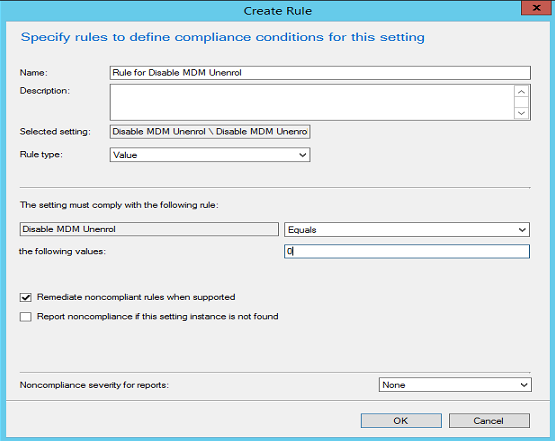
Add the required value on the rules page and select OK.


The rule has now been configured. Finish the wizard to create the Configuration Item and then add to a Configuration Baseline. Finally deploy the Configuration Baseline to your devices.

So what does that look like on the client.


I've tried to remove the MDM management in this managed Windows 10 client but I'm unable to do so.

So, now that you've seen how easy this is try it yourself. Peter van der Woude has some cracking examples of managing Windows 10 features using OMA-DM:

Managing AppLocker on Windows 10 via OMA-DM

Setting up kiosk mode on Windows 10 via OMA-DM

Managing Windows Update for Business on Windows 10 via OMA-DM

Have a look at the full list of Configuration Service Providers. It's a impressive comprehensive list and you'll certainly find something that you can test in your lab.

Configuration service provider reference

I hope this blog was useful in explaining some of the new terminology. Until next time......