Showing posts with label Windows 7. Show all posts

Monday, 30 June 2014

MDM in SCCM 2012 R2 - Windows 8.1 Phone

Back to ConfigMgr main menu
 
Back to MDM Menu

The procedure is exactly the same as for Windows 8 Phone until you are actually enrolling the phone. Instead of  Settings > Company Apps you need Settings > Workplace


Windows 8.1 Phone


Navigate to Settings


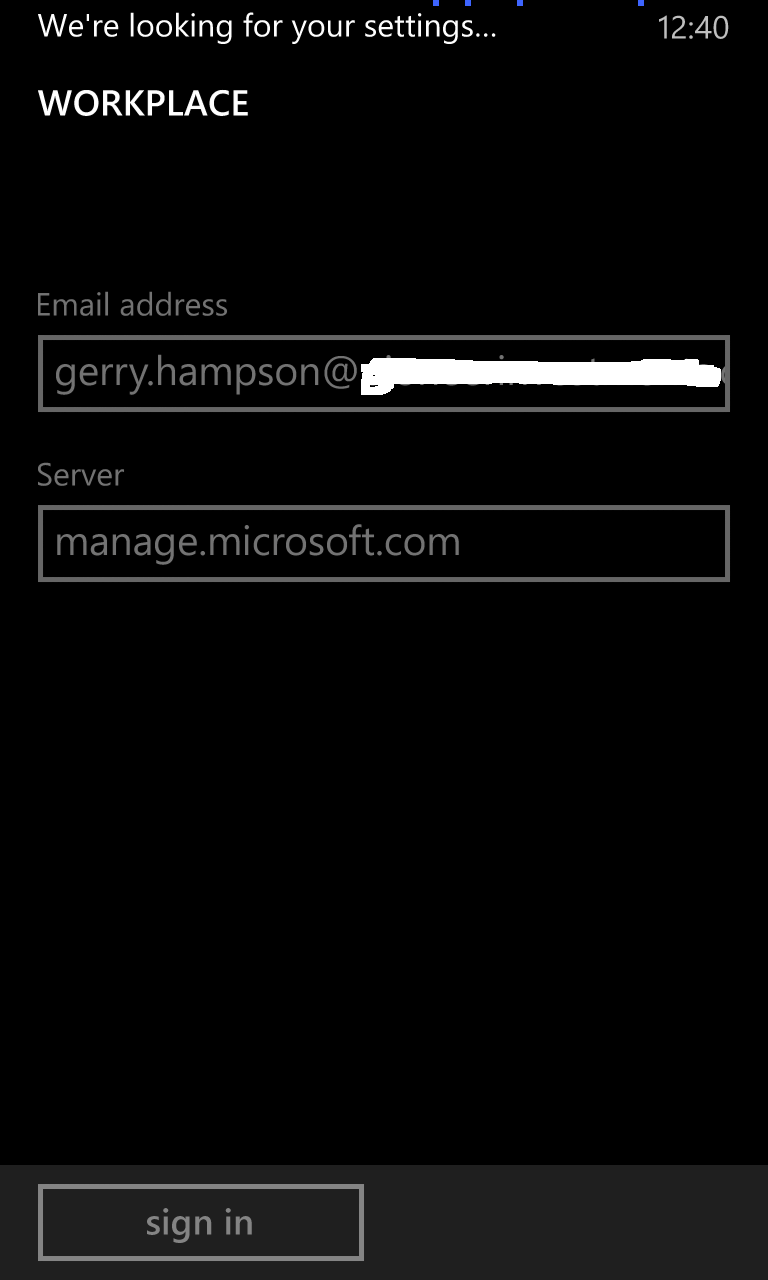
Open Workplace


Click to Add and account.


Enter your email address as before (or more correctly - your AD account UPN).


Enter the Microsoft server name if required.


Windows 8.1 is connecting to Intune.


The device is enrolled. Install the Company App.


Double-click on the account to see synchronization. Policy is being downloaded.


Synchronization is complete. Compliance policies will soon be applied to the device.


Sunday, 20 October 2013

Direct Access in 5 Easy Steps

Direct Access is a marvellous technology provided by Microsoft. It allows domain-joined devices to access corporate resources seamlessly over the Internet. When an Internet connection is detected Windows automatically connects to the Corporate Workplace Connection without any intervention (like a hands free VPN if you like).

Direct Access provided by Windows Server 2012 is really easy to configure (5 easy steps). It has progressed a lot since the days of Windows Server 2008R2, when this was quite a difficult configuration in conjunction with UAG.

Direct Access is an excellent alternative to traditional VPN technologies.
  • In Enterprise Client Management, a high percentage of helpdesk calls are logged regarding issues with VPN clients. I have seen evidence of a reduction in helpdesk calls after the deployment of Direct Access.
  • The performance overhead of the VPN client is eliminated.
  • Costs can be reduced with the reduction in VPN client licensing.

Note that Direct Access is a supplementary alternative to traditional VPNs rather than a replacement. Devices have to be domain-joined to be able to use the feature. This is normally not allowed in the case of 3rd party support companies or partners. They will continue to use traditional VPNs to connect to your corporate resources.

This series of blog posts will demonstrate how to deliver Direct Access in 5 Easy Steps using Windows Server 2012. We will concentrate only on Windows 8 clients which pretty much can connect "out-of-the-box". Windows 7 clients require a little more work and certificate configuration.

Please browse the sections below for a step by step guide.

Note that there a few ways to deploy the solution - you have some choices along the way. We will deploy a single server solution (with single NIC) incorporating a 3rd Party SSL Certificate.

Other options include:
  • deploying several servers for redundancy and load balancing
  • separate server for Network Location Server (NLS) - recommended
  • Network (NLB) or hardware (HLB) load balancing
  • Two-NIC implementation for deployment in DMZ
  • Certificates: Self-signed, CA, 3rd Party SSL

Start by creating a Windows 2012 server, fully patched, and join to your domain. This will be our Direct Access server (and our NLS in this case).

What is the Network Location Server (NLS)?

The NLS is a critical part of a Direct Access deployment. It is deployed as a means of verifying that Direct Access clients can, in fact, access corporate resources - the Direct Access clients locate and access a secure web page (or can be configured to locate by pinging).

It is also used to detect whether Direct Access clients are on the Internet or Intranet.


Step 1: Networking & Active Directory

Step 2: Certificates

Step 3: Add Remote Access Role

Step 4: Configure Remote Access Role

Step 5: Windows 8 client and troubleshooting

Advanced

Move NLS to remote web server

High Availability 


This series of blogs is now available as a downloadable PDF from the TechNet Gallery

http://gallery.technet.microsoft.com/Implement-Direct-Access-a7c085b1


Wednesday, 22 May 2013

Creating a Windows 7 Mandatory profile

This is the only "Microsoft supported" method of creating a Windows 7 Mandatory profile. There are other online methods (eg. editing  NTUSER.DAT via Regedit) but they are unsupported.

The process is based on the following official Microsoft Technet library documents

How to Customize the Default User Profile by Using CopyProfile

Configuring Standard User Accounts

Creating a Mandatory User Profile


The process is as follows:

1. Create Windows 7 reference PC (Workgroup only)
2. Log on with local account (member of Local Administrators)
3. Customise profile as required.
4. Download and install WAIK for Windows 7.
5. Launch Windows SIM (System Image Manager) and create answer file
6. Run Sysprep and restart the PC in OOBE
7. Log on as same local user 
8. Copy Profile to network location
9. Rename NTUSER.DAT to NTUSER.MAN
10. Assign profile to user

1. Create Windows 7 reference PC (Workgroup only)

2. Log on with local account (member of Local Administrators)

3. Customise profile as required. 

Add desktop shortcuts, change background etc.

4. Download and install WAIK for Windows 7.

WAIK for Windows 7.


Select Windows AIK Setup


5. Launch Windows SIM (System Image Manager) and create answer file


Launch Windows SIM


Windows SIM Console 


Insert Windows 7 DVD. Under Windows Image right click and "Select Windows Image"


Browse to sources directory and select install.wim


Choose your version and click OK.


The Windows Image section is now populated.


Under Answer File right click to create New Answer File. The Answer File section becomes populated.


In the Windows Image pane, expand Components, highlight amd64_Microsoft-Windows-Shell-Setup


Right click and then click Add Setting to Pass 4 specialize.


In the Answer File pane, select the Components\4_specialize\amd64-Microsoft-Windows-Shell-Setup_neutral folder


In the Microsoft-Windows-Shell-Setup Properties pane, in the Settings section, type the value CopyProfile = true


The CopyProfile parameter causes Sysprep to copy the currently logged-on user's profile folder to the Default User profile


Save this new answer file to the root directory of a removable media, and name it CopyProfile

6. Run Sysprep and restart the PC in OOBE


Open a command prompt as administrator


Run Sysprep as follows:


Sysprep.exe /generalize /oobe /reboot /unattend:E:\CopyProfile.xml


PC enters Out of Box Experience (OOBE)

7. Log on as same local user 

8. Copy Profile to network location


Navigate to  Start /Control panel/ System/ Advanced/User Profiles  Settings

Profile has now been copied to Default Profile using CopyProfile parameter (see Modified date)


Select the Default Profile and Copy To


Choose an external location for the profile


Change "Permitted to use" to Everyone


Save the profile

9. Rename NTUSER.DAT to NTUSER.MAN

 Add .v2 extension to the folder name


Rename the file NTUSER.DAT to NTUSER.MAN

10. Assign profile to user