Showing posts with label Configuration Manager. Show all posts

Sunday, 20 February 2022

Microsoft Defender Application Control and the unwanted reboot

I came across this issue again this week on a customer site. Windows 10 computers were being rebooted without warning. 

You’re about to be signed out 

Windows will shut down in 10 minutes

I narrowed this down to Microsoft Defender Application Control in Microsoft Endpoint Manager, "Application control code integrity policies" being set, even to Audit Only. 
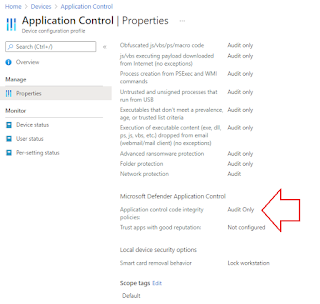


This is created as a Windows 10 configuration profile, choosing the Endpoint Protection template, then selecting the Microsoft Defender Application Control.


If you use the tooltip and follow the "Learn more" link, you are directed to the Applocker CSP page, so clearly that's what is in use here. 

According to the Microsoft docs, prior to Windows 10 version 1709, Windows Defender Application Control was known as configurable code integrity (CCI). Interestingly, this is the only AppLocker setting that causes a reboot. It's well documented on the Applocker CSP page. 

"The AppLocker CSP will schedule a reboot when a policy is applied or a deletion occurs using the AppLocker/ApplicationLaunchRestrictions/Grouping/CodeIntegrity/Policy URI".

I can verify that the reboot occurs when you apply the policy but also when you remove it.

Some of my colleagues have suggested ways to avoid the reboot. 
  • Peter van der Woude talks about creating a custom code integrity policy using OMA-URI and the Application Control CSP.
  • Rudy Ooms talks about the WDAC wizard.
  • You can read about creating a new base policy in the official docs using the WDAC wizard. 
This reboot is not a problem when you configure the same setting with ConfigMgr.


In ConfigMgr, the WDAC wizard allows us to de-select the check box to enforce the required reboot.

I hope this helps.

Until next time.......

Software updates issue - access denied

We encountered this problem recently on a customer site. The customer uses ConfigMgr to patch their Windows 10 estate. They've not had any major issues for quite some time but then the January CU for Windows 10 v1909 (KB5009545) started to fail with the Access is denied error (0x80070005).


We could see the error in the UpdatesHandler.log file.

WSUS update (92c58401-7a51-4e9d-9457-ca1a93c3e3d9) installation result = 0x80070005, Reboot State = NoReboot

Update execution failed.

But what did that mean? Nothing had changed so why all of a sudden was access denied? What specifically was being denied access?

We found the answer in the CBS.log file. CBS refers to Component-Based Servicing. Some components might be installed or uninstalled during Windows updates, and CBS.log is a file that includes details of these components. This file logs detailed information from your most recent Windows installed updates, and thus it can be used for troubleshooting issues related to your updates.

This log file is located in %windir%\Logs\CBS\ folder. There were several errors like this repeating over and over

2022-02-08 19:32:05, Info                  DPX    DpxMoveFileExW failed, source: \\?\C:\Windows\SoftwareDistribution\Download\55d2d88ec6c8540e1de4d959136d1809\inst\_Windows10.0-KB5009545-x64.cab_\$dpx$.tmp\4f76f8be37b84846a53e298df591e679.tmp, destination: \\?\C:\Windows\SoftwareDistribution\Download\55d2d88ec6c8540e1de4d959136d1809\inst\_Windows10.0-KB5009545-x64.cab_\amd64_microsoft-windows-e..-unifiedwritefilter_31bf3856ad364e35_10.0.18362.449_none_f216a3681960d832\r\uwfservicingscr.scr, hr 0x80070005

We could see similar issues using Procmon

8:51:31.2419935 PM  TiWorker.exe  10516  SetRenameInformationFile C:\Windows\SoftwareDistribution\Download\7998dad7da209654d66a9b53acb8a555\inst\_Windows10.0-KB5010345-x64.cab_\$dpx$.tmp\8bdd9ac34e21374c8fe95160faa8a43e.tmp        ACCESS DENIED            ReplaceIfExists: True, FileName: C:\Windows\SoftwareDistribution\Download\7998dad7da209654d66a9b53acb8a555\inst\_Windows10.0-KB5010345-x64.cab_\x86_microsoft-windows-photoscreensaver_31bf3856ad364e35_10.0.18362.1316_none_1d493b2302fc0b6b\r\photoscreensaver.scr

This error referred to TiWorker.exe which is the TrustedInstaller process and suggested that it did not have Full Control or Full Access to all the folders or sub-folders within the directory named SoftwareDistribution (C:\Windows\SoftwareDistribution). This didn't make much sense as nothing had changed in the environment.

We noticed that all the files that were blocked had a .SCR extension. These were screensaver files that were being updated by the January CU. Then we discovered that there was a McAfee access protection rule in place to block access to .SCR files. 


The fix was then straightforward. We excluded the TiWorker.exe process from the Block all SCR rule and the updates started to install.

I hope this helps if you find yourself in a similar situation. CBS logs and Procmon are your friends 😀

Until next time........


Sunday, 28 November 2021

Convert CMG to virtual machine scale set

Starting in Configuration Manager version 2010, organizations with a Cloud Solution Provider (CSP) subscription could deploy the CMG with a virtual machine scale set (VMSS) in Azure. Starting in version 2107, all organizations can deploy a CMG with a virtual machine scale set. There is no longer a dependency on the subscription type. However, my favourite feature of Configuration Manager 2107 is that, if you have an existing CMG deployed with the classic cloud service, you can convert the CMG to use a virtual machine scale set. I did that conversion in my lab and it worked a treat.

Of course there are some rules:

  • You can change some settings when you convert to VMSS, for example size of VM, CRL check.
  • You cannot change other settings when you convert to VMSS, for example, Azure subscription, Azure AD app, Region, Resource group.
  • The CMG service name will change from cloudapp.net to yourregion.cloudapp.azure.com. You will have to re-configure the CNAME record.
  • If you don't change the CMG public name then you don't have to re-install the CMG Connection Point.

In the Configuration Manager console, navigate to the Administration workspace > Cloud Services, and select the Cloud Management Gateway node.


Select the classic CMG instance whose Status must be Ready. In the ribbon (or right click), select Convert. This action opens the Convert CMG wizard.


On the General page, select Next. As we said earlier, you can't change any of these settings.


On the Settings page, note the new Deployment name with the suffix for the virtual machine scale set (in my case that is GerryHCMG.westeurope.cloudapp.azure.com).

Make other configuration changes as needed. Then select Next and complete the wizard.


Click Next to finish the wizard and convert the CMG.


Monitor the conversion process in the CloudMgr.log file, the same way as a new deployment.

You will see the new Azure resources. See the Virtual Machine Set and Key Vault, for example. We didn't have these with the classic CMG implementation.

I hope this helps. Until next time....

Tuesday, 20 October 2020

Managing Windows Virtual Desktops with Microsoft Endpoint Manager

Unsurprisingly, I have spent a lot of time recently deploying WVD solutions. In this blog post I want to highlight the MEM features that you can use to manage these desktops, especially in regard to Windows 10 multi-session. At the time of writing Configuration Manager 2006 in the latest production version.

For performance reasons ConfigMgr disables user policies on Windows 10 multi-session devices. This only happens with new client installations (1906 and later). If you upgraded the client from a previous version (pre 1906) then user policies will still be enabled. There may, of course, be a situation where you want to enable user policies and will accept any performance hit.


Open the Client Policy tab of Client Settings and choose "Enable user policy for multiple user sessions"


In versions 2006 and later, Windows 10 multi-session is now available in the list of supported versions for requirement rules. This is very useful when targeting FSLogix installations and registry settings.

If you previously selected the top-level Windows 10 platform, this action automatically selected all child platforms. The new platform isn't automatically selected. If you want to add Windows 10 multi-session, manually select it in the list.

Notes:
  • Currently Intune does not support Windows 10 multi-session but development work is actively being carried out.
  • Co-management is not supported on a client running Windows 10 multi-session.

These are exciting new MEM features with more to come. I hope this helps.

Until next time.......


Tuesday, 18 August 2020

CMG and VPN split tunnelling

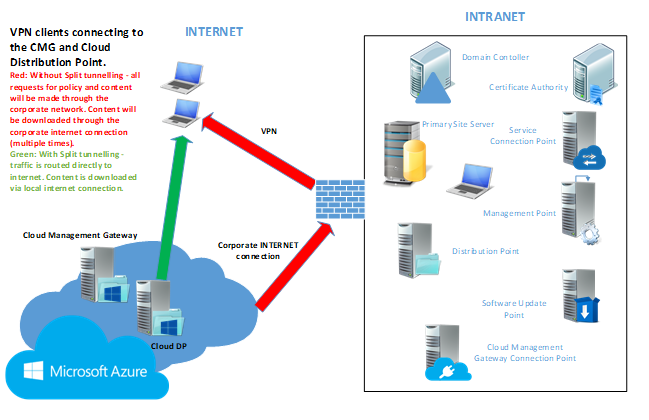
Let's first consider some CMG scenarios. First and foremost we deploy a CMG to manage internet-based clients. However, when the CMG is in place it can also be used to alleviate traffic on the VPN, subject to configuration of VPN split tunnelling. It is important to note the distinction between internet-based clients and those using the VPN. They are both remote clients but ConfigMgr handles them differently. Clients using the VPN will be deemed to be on the Intranet because they can communicate with a domain controller and a management point. Otherwise they are deemed to be on the Internet. 

Scenario 1: 


No additional boundary/boundary group configuration - CMG can manage devices truly on the internet that are not connected via VPN. Policy and content requests will be directly to internet with no chance of using corporate network.


Scenario 2: 


Configure boundary group for VPN subnets and associate with CMG for policy and content - VPN devices will connect to CMG for policy and Cloud distribution point for content. These requests will be made through the corporate network unless the traffic is routed directly to internet. Split tunnelling configuration is required to implement.


So what do we need to add to the split tunnelling configuration? It's very straightforward if your VPN configuration supports URLs. You need entries for the CMG and the storage account. The URLs are easy to find.


You'll find the service name in the properties of the CMG in the ConfigMgr console. You can see that the example from my lab is https://gerryhcmg.emslab.ie


What about the storage account? You'll find that in the Azure portal. See the example from my lab https://gerryhcmg.blob.core.windows.net/


You can also see this information in the log files on a ConfigMgr client. I have a test client installing software over CMG.


You can see the CMG URL in the CAS.log file.


Have a look in the DataTransferService.log file for the URL of the storage account. You'll see a line like:


Modifying download source from https://gerryhcmg.emslab.ie:443/downloadrestservice.svc/getcontentxmlsecure?pid=GH100009&cid=CONTENT_4E6083C7-411E-4CAD-AF2C-2633F6A4DCAA.1&tid=GUID:6B6A5684-4D64-44D8-ACD7-1CB28AB77307&iss=MEM.HAMPSON.LOCAL&alg=1.2.840.113549.1.1.11&st=2020-08-18T08:32:19&et=2020-08-18T16:32:19 to https://gerryhcmg.blob.core.windows.net/content-gh100009/Content_4e6083c7-411e-4cad-af2c-2633f6a4dcaa.1 (pre download)


What do you do if your VPN does not support split tunnel configuration via URL? It will be necessary to use IP addresses and ranges

The IP address of the CMG will not be known until it is deployed.


Then you'll find it in the Azure portal. It's 52.174.178.234 in my lab.

The IP ranges for Azure storage are published by Microsoft in a json file. However, it can be challenging to extract the information needed for your region. A Microsoft PFE (Ken Wygant) has published a community script to extract this information.


https://pfe.tips/get-azure-ip-ranges-your-cloud-management-gateway/


It gives you a list of IP ranges like this (this example is for EastUS2 region).


Then you can configure your split tunnel.


Thanks to Bryan Dam and Sandy Zeng for helping me to figure this out on the MVP distribution list.


I hope this helps. Until next time.....


Sunday, 21 June 2020

Cloud Management Gateway and Azure tags


I encountered this problem recently while deploying a CMG for a customer. Perhaps there was a better way for me to solve it but I'll explain the problem and how I worked around it. 

I got this error when creating the CMG. On my first try I was creating the resource group in the wizard.


Error occurred when granting Contributor permission to the Azure AD app for resource group xxxxx. For more information, see SmsAdminUI.log".

The error wasn't clear to me. I knew that I was using a Global Administrator account, which was also an Owner of the Azure subscription.  I didn't really understand the problem until I looked at the logs.

In the Azure activity log I found this.


It told me that the resource I was creating was disallowed by an Azure policy that had been configured. The policy was called "Require a tag and it's value on resource" and meant that resources could not be created in the subscription without tags and their associated values. I found the same text in the SmsAdminUI.log file. That makes sense. It's good for housekeeping, right?

However, ConfigMgr couldn’t create the resource group as there was a policy in place enforcing Azure tags, which I couldn’t configure in the wizard. I figured that I should create the resource group manually and apply tags to it. However I got the exact same error when I re-ran the wizard.

I finally solved it and created the CMG by disabling the policy. Perhaps there was a more graceful way to solve it but it allowed me to continue.

Remember, in ConfigMgr, logs are your friend.

I hope this helps.

Until next time...........

Sunday, 17 May 2020

CMG token based authentication with ConfigMgr 2002

A few years ago we were first introduced to the Cloud Management Gateway. It was a revolutionary new feature allowing us to manage all supported ConfigMgr clients over the internet. At that time the solution required that you configure a PKI solution so that the clients could communicate with the management point over https. Microsoft recognised that this was challenging for some organizations so, from version 1806, Azure AD joined Windows 10 devices could communicate with the management point over http (as long as we enabled enhanced http).

However that still didn't suit all organizations. Some organizations weren't ready for PKI or Azure AD join implementations and still needed to manage Windows 7 devices. ConfigMgr 2002 was generally released last week and includes a real game-changer. We can now used token-based authentication for communication between internet clients and the management point over http. The amazing thing here is that we don't have to do anything additional on the management point or client. All this works out of the box when you upgrade the ConfigMgr site to version 2002. Remember you MUST actually upgrade the clients to 2002 as well.

There are two scenarios and we'll look at both.

  • clients that can register on the internal network
  • clients that are always internet-based
Internal network

This is easy. It just works out of the box. When you upgrade a client to 2002 it will immediately register with the management point.


In the ClientIDManagerStartup.log file you will see the client receiving it's self-prove token from the management point.


This is a ConfigMgr 2002 client on the intranet. You will see that it is not configured for PKI (otherwise you would see Client certificate: PKI). It uses a self-signed client certificate (and the self-prove token behind the scenes).


The client is not Azure AD joined.


Now the client roams to the internet. It pairs it's self-signed certificate with the management point-issued self-prove token to communicate with the CMG.


The client is now aware of the CMG.


In the CcmMessaging.log file we can see the client receiving a CCM token which allows the communication to continue.


In the ConfigMgr console we can now see that the client is being managed over the internet.

An important thing to note is that the client renews the token once a month and it is valid for 90 days.

Internet-based

What can we do with clients that are already internet-based? We won't be able to automatically upgrade the client to 2002 and the client won't be able to register with the management point immediately and get the self-prove token. In this case we can use the bulk registration token.

Navigate (as administrator) to the \bin\x64 folder of the ConfigMgr installation directory on the site server.


Run the tool by executing: 

BulkRegistrationTool.exe /new

The token is generated. Remember this token has a short-validity period so you should use it straight away.


Copy the token.


Now install the ConfigMgr client on the internet-based device using the additional /regtoken parameter. I've done it manually by copying the installation files to the device and executing this command:

ccmsetup.exe /mp:https://GerryHCMG.emslab.ie/CCM_Proxy_MutualAuth/72186325152220500 CCMHOSTNAME=GerryHCMG.emslab.ie/CCM_Proxy_MutualAuth/72186325152220500 SMSSiteCode=GER SMSMP=https://MEM.hampson.local /regtoken:eyJ0eXAiOiJKV1QiLCJhbGciOiJSUzI1NiIsIng1dCI6Ik1XUldSbUtVQlZjNlJDSGpCTjQyZnhvZUdEMCJ9.eyJTQ0NNVG9rZW5DYXRlZ29yeSI6IlNDQ01QcmVBdXRoVG9rZW4iLCJBdXRob3JpdHkiOiJTQ0NNIiwiTGljZW5zZSI6IlNDQ00iLCJUeXBlIjoiQnVsa1JlZ2lzdHJhdGlvbiIsIlRlbmFudElkIjoiN0IwQzM4MDYtRDI4Qy00QTQ1LUFEQjItRkI5Rjk0QTQ2MkY4IiwiVW5pcXVlSWQiOiJlYTJmYzUxMC1hM2JlLTRjZWYtOTBiMC0yYTA1MTVjNGU0MGMiLCJpc3MiOiJ1cm46c2NjbTpvYXV0aDI6N2IwYzM4MDYtZDI4Yy00YTQ1LWFkYjItZmI5Zjk0YTQ2MmY4IiwiYXVkIjoidXJuOnNjY206c2VydmljZSIsImV4cCI6MTU4OTcwMTUxOCwibmJmIjoxNTg5NDQyMzE4fQ.Y-6s6_h18cnIZP8OPqdjpxQHUhg_4srICehX5xOfym5AcyQRC3wlN89PAByFD2gfp6QvV7gXX9H7oG198UGHhUuJrthAipSo4KNCSr8t7TcZwjR9awt720tErf9aiflBKnFibAYAGU9xBS3UYTetQ6XYpdh0XsCedsbh0-6ilj6KmP1qWBFIYNkBaL3oP_HJhX02de0wqeh-fWiTtdvbKnOxDrGetoCKsEVp3sJumprzWHZ6ZpRD3powG3AUOOSbAW96c_driDvzwC6x6hoWOo4GPEs-BaoJUdRzi1htY9IJB2X_drIQqLH8X0Ps6B5H5-KGH3gB0tJA45WwERuLxA


As before you will see the client getting it's CCM token from the CMG in the ClientIDManagerStartup.log file.


The client is installed.


In the ConfigMgr console we can see that the device is managed by the CMG over the internet.

There are obviously a few challenges in this scenario:

How does the remote user get the ConfigMgr 2002 client installation files?

I plan to use this scenario in production and I intend to copy the files and installation instructions to OneDrive to make available to users.

How can the user install the client if they are not a local administrator?

This one is more challenging. The users will need some assistance with elevated rights, possibly using screen-sharing software. This also highlights a great use case for a solution like Local Administrator Password Solution (LAPS).

I think this feature will be extremely useful so I hope this walkthrough was helpful.

Until next time......


Thursday, 7 May 2020

CMG Name Resolution Failure

This was an issue I encountered recently. I had added a CMG but there were errors in the CMG Connection Analyzer.

I always advise my customers to secure the CMG using a public SSL certificate. This involves using an externally routable domain and creating a CNAME record to direct requests to the CMG (ghcmg.emslab.ie -> ghcmg.cloudapp.net for example, all the screenshots below are examples, not from the customer). 


I had already configured the CNAME record with the domain hosting company and it could resolve externally. This is what it should look like. The DNS name should resolve but it doesn't matter that there is no ping response. That is normal.


However the CMG Connection Analyzer still failed with the error:

"Failed to connect to the CMG service. Unexpected response status code is NameResolutionError. For more information, see SmsAdminUI.log".


I carried out some troubleshooting and saw that the CNAME resolution did not work from the Primary Site server. At that point I realized that the customer was using split DNS. In a split DNS infrastructure, you create two zones for the same domain, one to be used by the internal network, the other used by the external network – typically users on the Internet. Split DNS directs internal hosts to an internal domain name server for name resolution and external hosts are directed to an external domain name server for name resolution.

The solution was to also add the CNAME record to the internal DNS zone.


Right click the zone and choose New Alias (CNAME).


Enter the details for the alias.


All was good for the CMG.

Until next time....

Tuesday, 5 May 2020

CMG - the subscription is not registered to use namespace 'Microsoft.Storage'

This was a new issue for me to fix when deploying a CMG last week. 


The first attempt failed - "Failed to provision cloud service".


The CloudMgr.log file was full of information and told me what I needed to know.

"The subscription is not registered to use namespace 'Microsoft.Storage'".


I could see the same in the Azure Activity log.


This was a little unusual for me as I hadn't come across this problem before. I know that I have to register the Classic.Compute resource provider (this one has it's own issues in that it's not exposed in a CSP subscription) but I've never seen a problem with the Microsoft.Storage resource provider.

As usual I found that it was specifically called out in the official docs.

"The Microsoft.ClassicCompute & Microsoft.Storage resource providers must be registered within the Azure subscription".


I registered the Microsoft.Storage resource provider.....


....and was able to deploy the CMG.

I hope this helps you. Until next time......

Monday, 4 May 2020

Take care when choosing CMG service name

I bumped into this challenge last week and, although it's easy to solve, it can be a nuisance and can cause delays to your CMG project.

I always advise my customers to secure the CMG using a public SSL certificate and, of course, one of the first questions is what name will be used on the certificate. It doesn't really matter what name you choose as long as it's unique in Azure, or so I thought. That's only part of the requirement. 


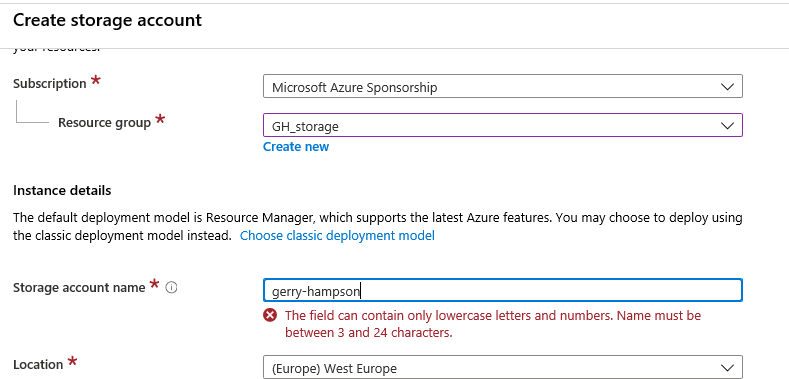
I encountered this error message when configuring the CMG where the customer had used a dash (or hyphen) in the name. It looks like that is not supported. The service name should be between 3 and 24 characters in length and should only have letters or numbers. 

I decided to do a little digging and of course I found this in the official docs

"If you will also enable the CMG for content, confirm that the CMG service name is also a unique Azure storage account name. If the CMG cloud service name is unique, but the storage account name isn't, Configuration Manager fails to provision the service in Azure. Repeat the above process in the Azure portal with the following changes:
  • Search for Storage account
  • Test your name in the Storage account name field
The DNS name prefix, for example GraniteFalls, should be 3 to 24 characters long, and only use alphanumeric characters. Don't use special characters, like a dash (-)".
I had a look.

Yes the cloud service can contain a dash.

But no special characters are allowed for the storage account. I'll know for the next time :)
It was easy to recover from this and we requested a new certificate. It delayed the project a bit but the CMG is now safely deployed.
I hope this helps. Until next time.....