
Wake on LAN has been a difficult solution to implement with Configuration Manager for many years. It has worked perfectly on the local subnet but could be problematic for remote subnets.
Let's start but by discussing exactly what it is. Wake-on-LAN (sometimes abbreviated WoL) is the industry standard for waking computers up remotely from a very low power mode. WoL is usually configured through the network card’s firmware, so you don’t need specific software to enable it. Support for Wake-on-LAN is now pretty universal and you can expect that the functionality would be available on any computer purchased in the last ten years.
Wake-on-LAN-enabled computers wait for a “magic packet” to arrive that includes the network card’s MAC address in it. These magic packets are often sent by a management solution (e.g. ConfigMgr). The typical ports used for WoL magic packets are UDP 7 and 9. Magic packets are usually sent over the entirety of a network and contain the subnet information, network broadcast address, and the MAC address of the target computer’s network card.
WoL magic packets are not routable so configuring the solution for remote subnets has always been problematic. Microsoft previously developed the wake-up proxy to help with this situation but that solution also carried a health warning. In certain circumstances (i.e. when you're using port-security) wake-up proxy could lead to disruption and loss of service. Wake-up proxy caused the network switch to believe that a different network adapter was using the port than the one that was registered. This behaviour is known as a MAC flap and is unusual for standard network operation. Some network monitoring tools look for this behaviour and can assume that something is wrong. Consequently, these monitoring tools can generate alerts or shut down ports when you use wake-up proxy. It was recommended not to use wake-up proxy if the network monitoring tools and services did not allow MAC flaps.
With this new solution in 1810 the site server uses the client notification channel to identify another client that's awake on the same remote subnet. It's all pretty straightforward to configure so let's have a look. Remember this solution allows you to implement a remote WoL solution without having to configure any networking.
SCCM side:
This part hasn't changed from the original WoL configuration.
- In the ConfigMgr console navigate to Administration > Site Configuration > Sites.
- Select the site, right click and select Properties.
- Click the Wake on LAN tab

- Check the box next to "Enable Wake On LAN for this site:"
- Select a WoL transmission method

- Click on Advanced to see the WoL transmission options. To make the solution more reliable you may choose to increase the number of retries.

- Select the Ports tab of the site properties. The default WoL port in ConfigMgr is 9. For security reasons Microsoft recommends that you change this to a more obscure port (I've left it at 9 for now).
- Save the configuration
Log files
You will notice that two new log files are created on the site server. There are no client-side log files for WOL.

- WolCmgr.log: Contains information about which clients need to be sent wake-up packets, the number of wake-up packets sent, and the number of wake-up packets retried.
- Wolmgr.log: Contains information about wake-up procedures, such as when to wake up deployments or deployments that are configured for WOL.
Client side configuration
This involves configuration of the NIC properties. Right
click on your network card and choose Configure, then click on the Advanced
tab.

Scroll down in the list to find Wake on Magic Packet. Change the value to Enabled. The other “Wake on” settings are not required.

Click the Power Management tab, and make sure the "Allow this device to wake
the computer” and “Only allow a magic packet to wake the computer” boxes are
enabled.
You need to ensure that these options are set for all the computers you will need to wake up. That could be a pain to do manually. Terence has a good blog post on creating a ConfigMgr CI for this.
Testing
Now let's have a
look at the new functionality. What do you need?

This is the "remote subnet" of my lab. I have two laptops with the NICs configured for WoL and the ConfigMgr client installed.
- Client 1 is turned off
- Client 2 is turned on with a WoL monitor running. Client 2 will receive the magic packet and will turn client 1 on

Right click on the computer you want to wake up. Select the Client Notification channel. See the new Wake up option. (The same action is available on a specific collection. The site tries to wake up any client in that collection that's asleep.)

ConfigMgr is pretty smart here and will know if there is no other client computer awake on the remote subnet.

I'm in luck. I have a computer that is already awake on the remote subnet. Remember I didn't configure any kind of proxy computer. I merely ensured that the NICs were configured correctly for WoL.
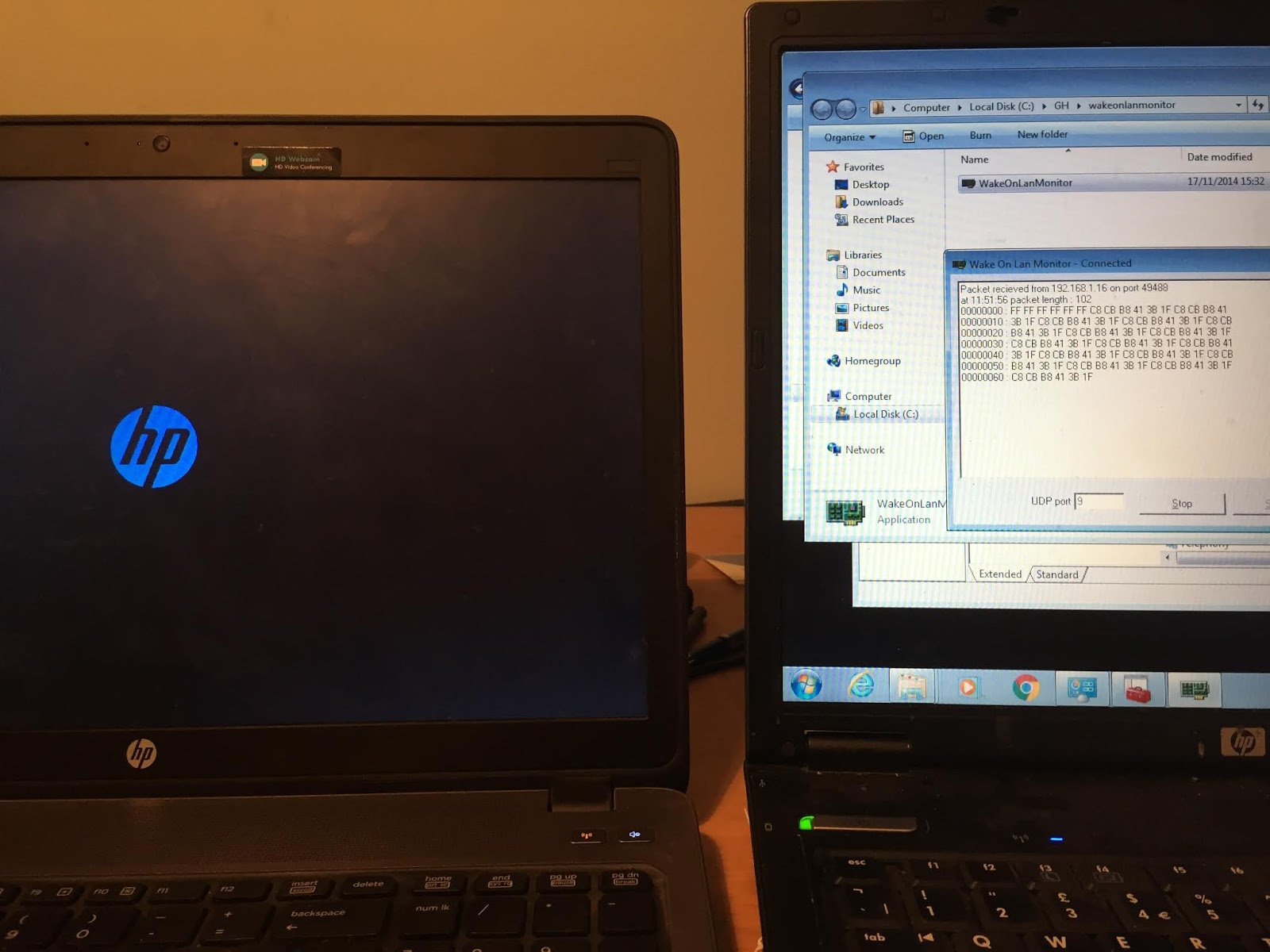
Success. The magic packet is detected almost immediately on client 2 (see the text in the WoL monitor) and immediately wakes up client1.

The WoL monitor shows details of the magic packet. See how I configured the port to match the ConfigMgr WoL port.
Remember that your required deployments continue to work as normal (applications, task sequences and software updates).
I was amazed at how well this works (with minimal effort). I'll now implement this at my customer sites.
There are some limitations to the solution
I was amazed at how well this works (with minimal effort). I'll now implement this at my customer sites.
Limitations
There are some limitations to the solution
- At least one client in the target subnet must be awake.
- IPv6 is not supported (I presume this means it won't work over Direct Access).
- 802.1x network authentication is not supported.
Until next time......
