Showing posts with label MEM. Show all posts

Monday, 6 February 2023

Remove pre-installed HP software during Autopilot

This was a task I was given by a customer recently. They wanted all the pre-installed HP software removed when provisioning HP ProBook 450 G8 laptops using Autopilot and Intune. As I like to tell customers, "if you can script it you can do it with Intune".

This was the list:

  1. HP Connection Optimizer
  2. HP Documentation
  3. HP ICS
  4. HP Notifications 
  5. HP Security Update Service
  6. HP Support Assistant
  7. HP Wolf Security
1. HP Connection Optimizer

This one is a little tricky and requires the help of an answer file. I got a little help from Reddit

Create an InstallShield answer file. Copy the text to Notepad and save as .iss file (I called it HPConnOpt.iss)

[InstallShield Silent]
Version=v7.00
File=Response File
[File Transfer]
OverwrittenReadOnly=NoToAll
[{6468C4A5-E47E-405F-B675-A70A70983EA6}-DlgOrder]
Dlg0={6468C4A5-E47E-405F-B675-A70A70983EA6}-SdWelcomeMaint-0
Count=3
Dlg1={6468C4A5-E47E-405F-B675-A70A70983EA6}-MessageBox-0
Dlg2={6468C4A5-E47E-405F-B675-A70A70983EA6}-SdFinishReboot-0
[{6468C4A5-E47E-405F-B675-A70A70983EA6}-SdWelcomeMaint-0]
Result=303
[{6468C4A5-E47E-405F-B675-A70A70983EA6}-MessageBox-0]
Result=6
[Application]
Name=HP Connection Optimizer
Version=2.0.18.0
Company=HP Inc.
Lang=0409
[{6468C4A5-E47E-405F-B675-A70A70983EA6}-SdFinishReboot-0]
Result=1
BootOption=0 

I copied the answer file to Azure storage and generated a shared access signature so that the file could be downloaded from anywhere.

Next is the script (UninstallHPConnOpt.ps1)

invoke-webrequest -uri "https://xxx.blob.core.windows.net/autopilot-scripts/HPConnOpt.iss?MySharedAccessSignature" -outfile "C:\Windows\Temp\HPConnOpt.iss"

&'C:\Program Files (x86)\InstallShield Installation Information\{6468C4A5-E47E-405F-B675-A70A70983EA6}\setup.exe' @('-s', '-f1C:\Windows\Temp\HPConnOpt.iss')

The script downloads the answer file and copies to C:\Windows\Temp. It then executes setup.exe for HP Connection Optimizer and calls the answer file. This uninstalls the app.

To deploy the solution via Intune, copy the script and answer file to a folder. Then create a Win32 app which results in a .IntuneWin file containing both files.

2. HP Documentation

This one is a bit more straightforward. The script sets the location to "C:\Program File\HP\Documentation" and then runs the uninstall command.

Set-location "C:\Program Files\HP\Documentation"
.\Doc_uninstall.cmd

Upload the script to Intune and assign to a group.

3. HP ICS

They're getting easier

$Prod = Get-WMIObject -Classname Win32_Product | Where-Object Name -Match 'ICS'
$Prod.UnInstall()

Upload the script to Intune and assign to a group.

4. HP Notifications

This one is the same format.

$Prod = Get-WMIObject -Classname Win32_Product | Where-Object Name -Match 'HP Notifications'
$Prod.UnInstall()

5. HP Security Update Service

Same format again.

$Prod = Get-WMIObject -Classname Win32_Product | Where-Object Name -Match 'HP Security Update Service'
$Prod.UnInstall()

6. HP Support Assistant

This one is a little different. It's an appx installation. Nicolaj Andersen has an excellent script for removing unwanted built-in appx apps during provisioning, except those that you explicitly whitelist. The script will remove the HP Support Assistant.

7. HP Wolf Security

Same format as before

$Prod = Get-WMIObject -Classname Win32_Product | Where-Object Name -Match 'HP Wolf Security'
$Prod.UnInstall()


These are the settings you need when you are deploying your scripts with Intune.

I hope this helps you and saves you time if have the same task. 

Until next time......


Saturday, 15 October 2022

Disabling screen rotation on Windows tablets with Intune

I had a recent requirement to disable screen rotation for Windows tablets. 

This is easy to do within Windows. There is a Display setting to turn on the Rotation lock. However, I had to automate this using Intune. There doesn't seem to be a Windows CSP for this so it's not possible to use a custom OMA-URI policy. 


However, this is something you can do by configuring the registryIf you navigate to HKEY_LOCAL_MACHINE\SOFTWARE\Microsoft\Windows\CurrentVersion\AutoRotation you'll see that the Enable key is set to 1. This needs to be changed to 0 to disable screen rotation. This is easy to configure with a PowerShell script:

New-ItemProperty -Path Registry::HKLM\SOFTWARE\Microsoft\Windows\CurrentVersion\AutoRotation -Name Enable -Value 0 -Force -PropertyType DWord

Once you have the script, upload it to Intune. Select Devices > Scripts > Add (Windows 10 and later). Choose the script location and configure the following:

  • Run this script using the logged on credentials - NO
  • Enforce script signature check - NO
  • Run script in 64 bit PowerShell Host - YES

Assign the script to a group of Windows tablets and screen rotation will be disabled.

I hope this helps. Until next time......


Tuesday, 27 September 2022

Suppressing key mapping on Zebra tablet using Intune

I've been doing a lot of work with Zebra devices recently. In this blog post, I showed how to use Zebra StageNow to create an XML file which could be deployed by Intune. I used the same technique to solve this latest problem.

I've developed an Android Enterprise dedicated device solution to turn Zebra ET40 rugged tablets into kiosk devices running Chrome only. Everything was working correctly except for one minor detail. I could press the top left button on the device which displayed the settings menu for the device. That's not what you want on a kiosk.


The button is labelled number 3 in the graphic above. The Zebra documentation tells me that this is a programmable button (or a key that supports key mapping) called P1. I carried out a lot of testing and I discovered that pressing P1 on the ET40 defaults to the settings app. I needed to suppress this key mapping on P1.

I was able to do that by creating a StageNow Xpertmode profile.


added the KeyMappingMgr CSP.


I selected the following settings and saved the profile:

  • Remap Key” button
  • "The key to modify" :  Select “P1 button” from drop down
  • "Key behaviour": Suppress Key

 Then I exported the settings to xml.

<wap-provisioningdoc>

  <characteristic version="9.2" type="KeyMappingMgr">

    <parm name="Action" value="1" />

    <characteristic type="KeyMapping">

      <parm name="KeyIdentifier" value="P1" />

      <characteristic type="BaseTable">

        <parm name="BaseBehavior" value="5" />

      </characteristic>

    </characteristic>

  </characteristic>

</wap-provisioningdoc>


This XML file was then use to create an Intune configuration profile based on the Zebra OEMConfig app


Select Configure > select the three dots next to Transaction Steps > and then select Add setting.
 

From the list of settings select,
Device Administration Configuration.


Under Device Administration Configuration only two settings are required.
  • Action = Submit XML
  • Submit XML = the .xml data we copied above. Paste it into this field.
Complete the wizard to create the device configuration profile and assign it to a group of your devices. Now pressing the P1 button now has no effect and the kiosk is secure.

Until next time......

Wednesday, 1 June 2022

BitLocker waiting for activation

This is a quick blog post describing an annoying issue I encountered while developing a Windows 10 Autopilot process for a customer. My BitLocker policy (MEM > Endpoint Security > Disk encryption) reported as Succeeded and the recovery key was escrowed to Azure Active Directory. 


However, all was not well in the BitLocker Drive Encryption applet in Control Panel. I had the yellow exclamation warning icon with the message "Windows (C:) BitLocker waiting for activation".


The event log gave me an idea where to look. "Failed to enable Silent Encryption. Group Policy settings require the creation of a recovery key". This was Azure AD only so the Group Policy reference didn't make much sense. However it made me look for anything related to creating a recovery key in my BitLocker policy.


I found it here. I had set Recovery key file creation to Required.

What does this do? According to the tooltip "Setting this to Allow will allow an admin user to create a 256-bit recovery key file manually. Setting this to Require will require an admin user to create a 256-bit recovery key file manually. Setting this to Deny will disallow any admin user from creating a 256-bit recovery key file manually. BitLocker silent enablement requires this setting configured as Deny or Allow". I didn't want this to be required.


Changing this setting to Allowed did the trick and the device was encrypted successfully.

I hope this helps.

Until next time.......


Monday, 14 March 2022

Intune policy not applicable

This is a quick follow up to my recent post where I discussed an issue my customer was having with an unwanted reboot. We narrowed this down to Microsoft Defender Application Control in Microsoft Endpoint Manager, "Application control code integrity policies" being set, even to Audit Only. 

I referred my customer to Peter van der Woude's post, where Peter talks about creating a custom code integrity policy using OMA-URI and the Application Control CSP. I had previously tested the solution successfully was I was quite happy to recommend it. My customer also successfully tested the solution in their lab but ran into difficulty when implementing in a production pilot. The policy status for the pilot devices was "Not applicable". 

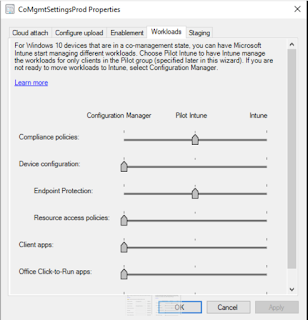
This was a little unusual but it was obvious when I figured out why. All testing was carried out in an Intune only environment. However, these devices were co-managed with the following settings.


The Endpoint Protection workload had been moved to Intune pilot. That worked well for Microsoft Defender policies. However the new policy (as per Peter's post) was a device configuration profile. This workload was still set to ConfigMgr and therefore the policy was not applicable to the devices. This was easily solved by moving the device configuration workload slider to Intune. Then the Intune policy applied as expected.

The only thing we had to worry about was that the customer was using some ConfigMgr configuration baselines and still wanted them managed by ConfigMgr. 


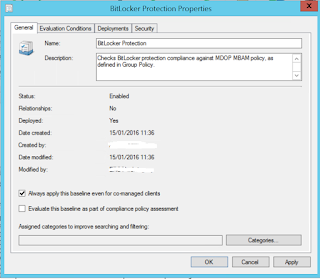
Luckily Microsoft provides a solution for that. We selected "Always apply this baseline even for co-managed clients".

I hope this helps if you encounter a similar situation.

Until next time......


Sunday, 17 October 2021

My first look at Windows 11 readiness

I'm a little bit late to the party here but I've been very busy this year. Some of my customers have started asking about Windows 11 so I've started looking into Windows 11 readiness. There has been some controversy about this already. Organizations are finding that many of the devices that easily run Windows 10 are not capable of running Windows 11. 

Windows 11 requirements.

Let's start with the hardware requirements. They are clearly defined in the Microsoft documentation. 

  • Processor: 1 gigahertz (GHz) or faster with two or more cores on a compatible 64-bit processor or system on a chip (SoC).
  • RAM: 4 gigabytes (GB) or greater.
  • Storage: 64 GB or greater available storage is required to install Windows 11.
    • Additional storage space might be required to download updates and enable specific features.
  • Graphics card: Compatible with DirectX 12 or later, with a WDDM 2.0 driver.
  • System firmware: UEFI, Secure Boot capable.
  • TPM: Trusted Platform Module (TPM) version 2.0.
  • Display: High definition (720p) display, 9" or greater monitor, 8 bits per color channel.
In general all these requirements seem pretty reasonable. The TPM requirement seems to be the one that has caused the most fuss. Many organizations still have a lot of hardware with TPM 1.2. Fortunately the firmware of many models can be upgraded to give you TPM 2.0, but your mileage may vary on that. Updating firmware on thousands of devices can be an administrative challenge, but we should be doing that anyway, shouldn't we 😀.

Michael Niehaus has published a blog post, Windows 11 new hardware requirements: Justified or not?, which delves into each requirement in detail. It's worth a read.

Windows 10 upgrade

If you want an in-pace upgrade from Windows 10 to Windows 11, you must be running a supported version of Windows 10. Currently that is v1909 or later. You can find the supported versions here

Windows 11 readiness.

This is the part that really interested me. How can organizations verify if their devices are Windows 11 capable or not? I've looked at a few options.

Script

Microsoft have published a script to determine whether an individual device meets the system requirements for Windows 11. Download HardwareReadiness.ps1 and run with an elevated prompt. 


The script output will be a returnCode (is the device capable or not)..... 

.
..and returnReason (why the device is not capable).

It is recommended to use Microsoft Endpoint Manager or Configuration Manager to deploy the script at scale.

Configuration Manager report

The guys at System Center Dudes have developed a pretty cool Windows 11 readiness report for Configuration Manager. You can download the report for free from their website

The report lists the following components and highlights in red if a component does not match the Microsoft minimum requirement: Device Name, UserName, Client Status, Client Version, OS Edition, OS Version, OS Branch, CPU Speed, RAM, Free Space, Device Manufacturer, Device Model, Secure Boot Status, UEFI Bios status, TPM version and status

Endpoint Analytics

I've been interested in this feature for some time now and it is really useful for assessing Windows 11 readiness. Windows 11 insights are available for all Intune-managed and co-managed devices in Endpoint analytics, as well as devices enrolled via tenant attach with Configuration Manager, version 2107 or newer.

In the MEM console, navigate to Reports > Endpoint Analytics.


Select
Work from anywhere (preview) and click WindowsA chart is displayed showing which specific hardware requirements are the top blockers in your organization.

In the Windows tab, a device-by-device view of Windows 11 hardware readiness is displayed. 


The 
Windows 11 readiness status column indicates if device is Capable of upgrading to Windows 11 based on the minimum system requirements. 


We see a Windows 11 readiness reason if it is 
Not capable.


In most cases, devices with a Windows 11 readiness status of Unknown are inactive. You can verify this by reviewing the last check in time from Intune. I've seen a lot of Unknown devices so I'll be doing some troubleshooting on these and will update this post with my findings.

I hope this helps. Until next time.....


Wednesday, 11 August 2021

Troubleshooting Hybrid Azure AD Join issue

I've been working with a customer this week to configure Hybrid Azure AD Join and co-management. In the first phase (HAADJ), most of my test devices successfully registered in Azure AD. However there were some stragglers. These devices didn't even show up as "Pending" in Azure AD. They just didn't appear at all.

It was time for troubleshooting. What is the best way to find out what is wrong? There are many things you can check.

Service Connection Point

As some of the domain joined devices had successfully registered in Azure AD already, it seemed unlikely that there was a problem with the Service Connection Point. However I had a look at it.

Beginning with version 1.1.819.0, Azure AD Connect provides you with a wizard to configure hybrid Azure AD join. Azure AD Connect deploys a Service Connection Point (SCP) into your Active Directory environment. A service connection point in AD is essentially an object that points to a specific service. The Azure AD Service Connection Point includes information on the following items in its keywords attribute:

  • azureADId; The Azure Active Directory tenant ID
  • azureADName; The Azure Active Directory tenant’s verified custom DNS domain name, or the *.onmicrosoft.com DNS domain name if no verified custom DNS domain name exists for the Azure AD tenant

 The Service Connection Point format is as follows:

CN=62a0ff2e-97b9-4513-943f-0d221bd30080,CN=Device Registration Configuration, CN=Services, CN=Configuration,DC=domain,DC=tld

 Follow this procedure to verify the Service Connection Point in Active Directory.

  • Launch ADSI Edit as an Enterprise Administrator.
  • Connect to the Configuration Naming Context of the domain.
  • Browse to CN=Configuration,DC=contoso,DC=com > CN=Services > CN=Device Registration Configuration
  • Verify that the leaf object CN=62a0ff2e-97b9-4513-943f-0d221bd30080 exists (this is the same CN value for every organization)
  • Select Properties
  • Select keywords from the Attribute Editor window and click Edit
  • Verify the value of azureADId
  • Verify the value of azureADName

This was all good for me.

OU Sync

The next step is to check that the device is in an OU which is synchronized to Azure AD. This is a configuration in Azure AD Connect. 


Navigate to the Domain and OU filtering screen and verify that the OU is selected for sync. I didn't find any problem here.

DSREGCMD

The next step was to have a look at one of the devices. You can get a lot of information using the DSREGCMD /STATUS cmdlet


In the Device State section I could see AzureADJoined = No. However the Diagnostics Data section gave me valuable information.

Failed to schedule Diagnostics Task. Error: 0x80041326

DSREGCMD /DEBUG /JOIN is also useful.


Cannot start Task: 0x80041326

Failed to schedule Join Task. Error: 0x80041326

This told me exactly where to find the problem. The issue was with the Workplace Join scheduled task.

Task Scheduler


Sure enough, I launched Task Scheduler and navigated to Microsoft > Windows > Workplace Join. I could see that all the tasks were disabled. In my experience some external configuration was preventing Azure AD registration on the device.

SCCM


ConfigMgr client settings was a good place to start. However automatic Azure AD registration was allowed (Cloud Services).

Group Policy

The next place to look was group policy, it's always a GPO, right?


A Resultant Set of Policy query showed me exactly where the problem was.

Computer Configuration > Administrative Templates > Windows Components > Device Registration > Register domain joined computers as devices was disabled.


What did this setting do? The description showed that this setting allowed devices to be silently registered in Azure AD. Disabling it obviously had the reverse effect and prevented the registration.

Solution

The solution was to remove this GPO setting from the affected devices.

I hope this helps. Until next time.....


Thursday, 17 June 2021

Migrating to a Microsoft Defender solution

This is becoming very popular and many of my customers have recently made the switch. It seems like a no-brainer, especially if you have purchased Microsoft 365 E5 licenses. 

This information should help you to plan and implement a migration from another endpoint protection solution.

Is Microsoft Defender Antivirus free?

It is, kind of. Microsoft Defender Antivirus is a core component of Windows 10. It's built into the operating system and is included in the cost of Windows. This is often good enough for a home user but certainly not for an enterprise organization. Defender AV needs to be managed and you must license the management tools. Microsoft Endpoint Manager (SCCM or Intune) are the favourites here.

What is Defender for Endpoint?

I've found that this is the most confusing part for customers. Defender for Endpoint (DfE), formerly Defender Advanced Thread Protection (ATP) is not Defender Antivirus. It's an enterprise endpoint security platform designed to help enterprise networks prevent, detect, investigate, and respond to advanced threats. Data from Defender antivirus can be consumed and used by DfE by onboarding devices independently to the service. You can currently access DfE (until 6th July 2021) using the Microsoft Defender Security Center 

https://securitycenter.windows.com/ (see next question).

What is Microsoft 365 Defender?

This is an integrated solution including the following:

  • Microsoft Defender for Endpoint
  • Microsoft Defender for Office 365
  • Microsoft Defender for Identity
  • Microsoft Cloud App Security

You can access the M365 Defender portal at https://security.microsoft.com/

The Microsoft Defender Security Center standalone portal will no longer be available from 6th July 2021. 

What license do I need for Defender for Endpoint for my workstations/laptops?

Microsoft Defender for Endpoint requires one of the following Microsoft volume licensing offers:

  • Windows 10 Enterprise E5
  • Windows 10 Education A5
  • Microsoft 365 E5 (M365 E5) which includes Windows 10 Enterprise E5
  • Microsoft 365 A5 (M365 A5)
  • Microsoft 365 E5 Security
  • Microsoft 365 A5 Security
  • Microsoft Defender for Endpoint (this is a standalone offering where you don't have any of the above subscriptions)
These are user based. Eligible licensed users may use Microsoft Defender for Endpoint on up to five concurrent devices. 

I have Microsoft 365 E5 licenses for all my users. Does this cover servers?

No, in this case you will need Microsoft Defender for Endpoint for Server (one per covered server). This is also covered with "Azure Security Center with Azure Defender enabled".

Can I just purchase Microsoft Defender for Endpoint for Server only?

No. Customers may acquire server licenses (one per covered server Operating System Environment (OSE)) for Microsoft Defender for Endpoint for Servers if they have a combined minimum of 50 licenses for one or more of the following user licenses:

  • Microsoft Defender for Endpoint
  • Windows E5/A5
  • Microsoft 365 E5/A5
  • Microsoft 365 E5/A5 Security
What else should I consider when migrating to a Microsoft Defender solution?

It's possible that this migration is not as simple as just switching to a new antivirus solution. There are a number of considerations.
  • Will you also be using Defender for Endpoint? This is recommended.
  • How will you manage Defender antivirus settings? It is recommended to use SCCM or Intune antimalware policies.
  • Note that Intune does not manage servers so you need to consider that.
  • Is your current solution providing more than antivirus functionality, which you must replace before decommissioning? Windows Firewall configuration is common, for example.
Can Microsoft Defender Antivirus and non-Microsoft antivirus/antimalware solutions co-exist?

Microsoft Defender Antivirus is automatically enabled and installed on endpoints and devices that are running Windows 10. But what happens when another (non-Microsoft) antivirus/antimalware solution is used? It depends on whether you're using Microsoft Defender for Endpoint together with your antivirus protection. 
  • In active mode, Microsoft Defender Antivirus is used as the antivirus app on the machine. Management products will apply. Files are scanned and threats remediated, and detection information are reported in your configuration tool.
  • In passive mode, Microsoft Defender Antivirus is not used as the antivirus app, and threats are not remediated by Microsoft Defender Antivirus. Files are scanned and reports are provided for threat detections that are shared with the Microsoft Defender for Endpoint service. 
  • When EDR in block mode is turned on (in Microsoft Defender for Endpoint) and Microsoft Defender Antivirus is not the primary antivirus solution, it will detect and remediate malicious items. EDR in block mode requires Microsoft Defender Antivirus to be enabled in either active mode or passive mode.
  • When disabled, Microsoft Defender Antivirus is not used as the antivirus app. Files are not scanned and threats are not remediated. Disabling/uninstalling Microsoft Defender Antivirus is not recommended in general; if possible, keep Microsoft Defender Antivirus in passive mode if you are using a non-Microsoft antimalware/antivirus solution.
  • If you are enrolled in Microsoft Defender for Endpoint and you are using a third-party antimalware product, then passive mode is enabled. The service requires common information sharing from Microsoft Defender Antivirus service in order to properly monitor your devices and network for intrusion attempts and attacks. 
  • When Microsoft Defender Antivirus is in passive mode, you can still manage updates for Microsoft Defender Antivirus; however, you can't move Microsoft Defender Antivirus into active mode if your devices have an up-to-date, non-Microsoft antivirus product that is providing real-time protection from malware. 
  • When Microsoft Defender Antivirus is disabled automatically, it can be re-enabled automatically if the protection offered by a non-Microsoft antivirus product expires or otherwise stops providing real-time protection from viruses, malware, or other threats. 
The following table summarizes what happens with Microsoft Defender Antivirus when non-Microsoft antivirus/antimalware solutions are used together, with or without Microsoft Defender for Endpoint.


Notes:

1. On Windows Server, version 1803 or newer, or Windows Server 2019, Microsoft Defender Antivirus does not enter passive mode automatically when you install a non-Microsoft antivirus product. you can set Microsoft Defender Antivirus to passive mode by setting the following registry key

Path: HKLM\SOFTWARE\Policies\Microsoft\Windows Advanced Threat Protection
Name: ForceDefenderPassiveMode
Type: REG_DWORD
Value: 1

2. Passive mode is not supported on Windows Server 2016. If you are using a non-Microsoft antivirus product, you cannot run Microsoft Defender Antivirus in either passive mode or active mode. In such cases, disable/uninstall Microsoft Defender Antivirus manually.

How can Defender antivirus be configured and managed?

Microsoft Endpoint Manager (SCCM or Intune) is my tool of choice for managing these settings. Let's have a look at SCCM first.
  • The Endpoint Protection Point is a site system role that must be added.
  • Afterwards, we can see Endpoint Protection status under Monitoring > Security.
  • Create antimalware policies and deploy to device collections. This includes items like scheduled scans, scan settings, real-time protection and antivirus exclusions.
  • Use Automatic Deployment Rules (ADR) to download and install updated Defender antivirus definition files, now called "security intelligence updates".
You can also use Intune to manage the Defender antivirus settings on workstations.
  • You can find the antivirus policies under Manage in the Endpoint security node of the Microsoft Endpoint Manager admin center.
  • Antivirus policies include the same settings as endpoint protection or device restriction profiles for device configuration policy and are similar to settings from device compliance policy. However, those policy types include additional categories of settings that are unrelated to Antivirus. The additional settings can complicate the task of configuring antivirus.
  • Policies contain the same type of settings that we can configure using SCCM.
  • Policies are assigned to device groups.
How do I onboard devices to Defender for Endpoint?

Onboarding a client to Microsoft Defender for Endpoint will enable Endpoint Detection and Response, Threat and Vulnerability Management and many other SecOps related functionalities. Once onboarded, the endpoint will appear in the Microsoft 365 Defender portal and advanced security events and insights will become available.

There is a straightforward Microsoft Defender for Endpoint onboarding experience, for any client supported by Microsoft Endpoint Manager, whether it is SCCM, Intune, or co-managed.

For SCCM, we will need an onboarding XML file. This is generated in the M365 Defender portal.
  • Navigate to Settings > Endpoints > Device management > Onboarding.
  • Choose your operating system and deployment method and generate a download package.
  • In SCCM, navigate to Asset and Compliance > Endpoint Protection > Microsoft Defender ATP Policies and create a new policy. 
  • Choose an Onboarding policy and navigate to the configuration file.
  • Deploy to a collection of devices.
The configuration is more integrated for Intune. The first step you take is to set up the service-to-service connection between Intune and Microsoft Defender for Endpoint. 
  • Set up requires administrative access to both the Microsoft Defender Security Center, and to Intune.
  • In the MEM portal, select Endpoint security > Microsoft Defender for Endpoint, and then select Open the Microsoft Defender Security Center.
  • In Microsoft Defender Security Center, select Settings > Advanced features.
  • For Microsoft Intune connection, choose On
  • Return to Microsoft Defender for Endpoint in the Microsoft Endpoint Manager admin center
  • Under MDM Compliance Policy Settings, set Connect Windows devices to Microsoft Defender for Endpoint to On
  • When this configurations are On, applicable devices that you currently manage with Intune, and devices you enroll in the future, are connected to Microsoft Defender for Endpoint for compliance.
  • Finally create an Endpoint Detection and response profile. In the MEM portal, select Endpoint security > Endpoint detection and response.
  • Create a policy as shown.
  • Assign to a group.
What is Microsoft Defender Security Center app?

This is the UI on the client and can be accessed by clicking on the Defender shield icon on the system tray. 


The layout can be customized by using an Endpoint Protection configuration profile in Intune. See where I've blocked the Family Options section.


This is the Microsoft Defender Security Center app without Family Options.

Where does OneDrive fit into all this?

It's a good idea to configure OneDrive in advance for your users by using a GPO. 


If you don't you will end up with this warning when Defender is enabled and active. OneDrive is required for file recovery in case of a ransomware attack. The user can continue to set up OneDrive or Dismiss the warning but that's not the best approach.

What advanced features should be configured?

Microsoft Defender has a wide range of options available for configuration using MEM (SCCM or Intune). You should consider configuring all of the following:
Can I customize the Defender Security Center app for my organization?

Yes, you can. You can add details of your organization and support to the Defender Security Center app to assist your end users. Using an Intune Endpoint Protection configuration profile, navigate to the Microsoft Defender Security Center section. 


You can enter the organization name and support telephone number, email address and website URL. I've just entered the organization name and website URL here.


This is what it looks like in the Defender Security Center app. You can see a new button on the bottom right.


Click on the button and you'll see the details you have configured.


This configures the registry as shown:
Computer\HKEY_LOCAL_MACHINE\SOFTWARE\Policies\Microsoft\Windows Defender Security Center\Enterprise Customization

What are the high-level steps for a migration?

Microsoft provides good guidance to switch from non-Microsoft endpoint protection to Microsoft Defender for Endpoint.


The high-level steps are as follows (this example uses McAfee): 
  • Prepare phase
    • Get and deploy updates across your organization's devices
    • Get Defender for Endpoint.
    • Grant access to the Microsoft Defender Security Center.
    • Configure device proxy and internet connectivity settings.
  • Setup phase 
    • Reinstall or enable Microsoft Defender Antivirus on your endpoints.
    • Configure Defender for Endpoint.
    • Add Microsoft Defender for Endpoint to the exclusion list for McAfee.
    • Add McAfee to the exclusion list for Microsoft Defender Antivirus.
    • Set up your device groups, device collections, and organizational units.
    • Configure antimalware policies and real-time protection.
  • Phase 3 
    • Onboard devices to Microsoft Defender for Endpoint.
    • Run a detection test.
    • Confirm that Microsoft Defender Antivirus is in passive mode.
    • Get updates for Microsoft Defender Antivirus.
    • Uninstall McAfee.
    • Make sure Defender for Endpoint is working correctly.
How do I test Defender functionality?

In the Defender Security Center app we can see at a glance that our policies have been applied.


Also, Microsoft provide assistance to allow us to test demo scenarios. They provide sample files which are harmless and for demonstration purpose only.


You can test cloud-delivered protection.


Network protection


Controlled Folder access


URL reputation


I hope this helps. Until next time.......