Showing posts with label macOS. Show all posts

Friday, 18 April 2025

Managed software updates on Apple devices with Intune

We've been able to configure software update policies on iOS and macOS devices for a while, right. However this is new and different, released in March 2025 (Service release 2503). "Managed software updates" means something very specific. We can now configure devices to automatically update to the latest OS version using Apple Declarative device management.

Declarative device management (DDM) is an update to the existing protocol for device management that can be used in combination with the existing MDM protocol capabilities. It allows the device to asynchronously apply settings and report status back to the MDM solution without constant polling. This is ideal for performance and scalability.

To configure Managed software updates, navigate to Devices > Manage devices > Configuration > Create > New policy > choose iOS/iPadOS or macOS for platform > select Settings catalog for profile type.

Add the setting Declarative device management > Software Update Enforce Latest. 

You'll also see the "Software Update" and "Software Updates Settings" setting, more on them shortly.

We have three items to configure

  • Enforce Latest Software Update Version: If true, devices will upgrade to the latest OS version that is available for that device model. This uses the Software Update Enforcement configuration and will force devices to restart and install the update after the deadline passes.
  • Delay In Days: Specifies the number of days that should pass before a deadline is enforced. This delay is based on either the posting date of the new update when released by Apple, or when the policy is configured.
  • Install Time (optional): Specifies the local device time for when updates are enforced. This setting uses the 24-hour clock format where midnight is 00:00 and 11:59pm is 23:59. Ensure that you include the leading 0 on single digit hours. For example, 01:00, 02:00, 03:00.

The configuration in the screenshot will force an update of the device 1 day after Apple release an update, at no particular time. The device will always remain at the latest OS version. This is called an "automatic managed software updates policy".

If you select the Software Update setting in the settings picker, your options are different.

  • Details URL (optional): Enter a web page URL that has more information on the update. Typically, this URL is a web page hosted by your organization that users can select if they need organization-specific help with the update.
  • Target Build Version (optional): Enter the target build version to update the device to, like 20A242. The build version can include a supplemental version identifier, like 20A242a. If the build version you enter isn't consistent with the Target OS Version value you enter, then the Target OS Version value takes precedence.
  • Target Date Time: Select or manually enter the date and the time that specifies when to force the installation of the software update.
  • Target OS Version: Select or manually enter the target OS version to update the device to. This value is the OS version number, like 16.1. You can also include a supplemental version identifier, like 16.1.1.

This is called a "manual managed software updates policy" as you need to create a new one for every OS version you need to update to. You would use this policy if you are unsure about updating to the latest and greatest as soon as possible.

Remember Software Updates Setting in the Setting picker, what is that one about?.

This give us a single place to configure managed software updates. You may want to manage aspects of the software update process leading up to the enforcement of an update. Using this configuration, you can:

  • Require that an admin or standard user can perform updates on the device
  • Control how users can manually interact with software update settings like automatic download and install or the behavior of Rapid Security Responses
  • Hide updates from users for a specified time period
  • Suppress update notifications up to one hour before the enforcement deadline
  • Control whether users are allowed to update to the latest major update, latest minor update, or are offered both.

Precedence

Now that we have several places to configure updates for iOS and macOS devices, what happens when there is a conflict? Managed software updates (both automatic and manual) have precedence over other policies that configure software updates. If you configure managed software updates and also have other software update policies assigned, then it's possible the other update policies have no effect.

iOS/iPadOS precedence order:

  1. Managed software updates (Settings catalog > Declarative Device Management > Software Update)
  2. Update policies (Devices > Update policies for iOS/iPadOS)

macOS precedence order:

  1. Managed software updates (Settings catalog > Declarative Device Management > Software Update)
  2. Update policies (Devices > Update policies for macOS)
  3. Software updates (Settings catalog > System Updates > Software Update)

We have seen that you can create software update policies or managed software update policies for Apple devices in Intune. Both policy types can manage the install of software updates on devices. However, there are some differences between the two policy types. Microsoft have provided a table to help you decide which policy type to use.

I hope this helps you to understand the new "managed" policy type and how it differs from what we already had. Until next time.....

Saturday, 8 March 2025

Apple Rapid Security Response and Intune

Back to main macOS page

Rapid Security Responses (RSR) are a type of software release for iPhone, iPad, and MacOS devices. They deliver important security improvements between major software updates. They can also be used to mitigate some security issues more quickly. Rapid Security Responses are supported for versions starting with iOS 16.4.1, iPadOS 16.4.1, and macOS 13.3.1.

By default, Apple devices automatically apply Rapid Security Responses. Users may be prompted to restart their device.


iPhone or iPad: Go to Settings > General > Software Update > Automatic Updates, you should see that "Security Responses & System Files" is turned on. This is from my iOS 18.3.1 device.

Mac: Choose Apple menu > System Settings. Click General in the sidebar, then click Software Update on the right. Click the Show Detail button next to Automatic Updates, you should see that "Install Security Responses and system files" is turned on.

When a Rapid Security Response has been applied, a letter appears after the software version number, for example, macOS 13.3.1 became 13.3.1 (a) after the first RSR was applied, then (b) etc. Build numbers is a bit more complicated. The build number for macOS 13.3.1 is 22E261 but 13.3.1 (a) is 22E772610a. You need to know the build number if you will be configuring Intune policies.

So what can we configure with Intune? Remember RSR is enabled by default.

Settings catalog

Some configurations are available via the Settings Catalog and are identical for iOS and macOS.

Settings are available in two categories:


Restrictions:

  • Allow Rapid Security Response Installation - if 'false', Rapid Security Response will be disabled
  • Allow Rapid Security Response Removal - if 'false', users are unable to remove the Rapid Security Response option.

Declarative Device Management preview Software Update Settings:

  • Enable - if 'false', Rapid Security Responses are not offered for user installation. If 'true', Rapid Security Responses are offered to the user.
  • Enable Rollback - if 'false', Rapid Security Response rollbacks are not offered to the user. If 'true', Rapid Security Response rollbacks are offered to the user.

Compliance

You can configure an Apple Rapid Security Response update as the minimum OS build in an Intune compliance policy, for use with conditional access. 


Enter the supplemental build version. For example, 22E772610a is macOS 13.3.1 (a). Note that this had some teething problems when first released as the version wasn't detected correctly and conditional access blocked compliant devices. 

I hope this helps you to understand Apple Rapid Security Responses and what you can configure in Intune. Until next time...... 


Tuesday, 19 March 2024

macOS management with Intune - Gatekeeper

Back to main macOS page

Next up we'll talk about Gatekeeper. By default, Gatekeeper helps to ensure that all macOS installed software has been signed by the App Store or signed by a registered developer and notarized by Apple. It verifies that the software is free of known malicious content and hasn’t been altered.

We'll start with a macOS configuration profile. Navigate to Devices > macOS > Configuration Profiles and select Create new policy.


Choose Templates as the Profile type and select Endpoint Protection.


Enter a name for the policy and click Next.


We'll see two settings to configure. You are given the following options for "Allow apps downloaded from these locations"
  • Not configured (default)
  • Mac App Store
  • Mac App Store and identified developers
  • Anywhere
This is to limit the apps a device can launch, depending on where the apps were downloaded from. The intent is to protect devices from malware, and allow apps from only the sources you trust.


I've chosen Mac App Store for now. There is a second setting to configure "Do not allow user to override Gatekeeper". This prevents users from overriding the Gatekeeper setting, and prevents users from Control-clicking to install an app. When enabled, users can't Control-click any app to install it. I want this so I've selected Yes.


I'm assigning this policy to my group of Mac devices.


Select Create. The policy will then be assigned.


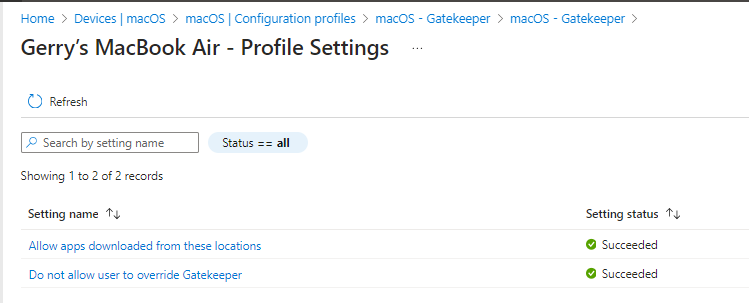
In Intune, I can see that the policy has been successfully deployed to my test device.


I can see that each of the two settings was successfully applied to the device.


On the device you can navigate to System Preferences > Profiles. There are two new profiles. The first one disallows apps by identified developers.


The second one disallows the opening of untrusted apps i.e. not downloaded from the Mac App Store. 


Navigate to System Preferences > Security and Privacy and we can see the configuration. Only allow apps downloaded from the App Store. The setting is greyed out and cannot be changed, even by an administrator on the device.


See what happens when launching an app that was downloaded from the Internet. It can't be opened because it was not downloaded from the App Store. That's what we want.

I hope this helps. Until next time.....

Tuesday, 14 November 2023

macOS management with Intune - compliance

Back to main macOS page

Compliance policies in Intune define the rules and settings that users and devices must meet to be compliant. They include actions that apply to devices that are noncompliant. Compliance policies can be combined with Conditional Access, which can then block users and devices that don't meet the rules.


First I want to figure out what configurations I can make in my compliance policy. Using the Terminal app on my test macOS I executed csrutil status to see if System Integrity Protection was enabled. It is enabled so I can safely use that for compliance.


Navigate to Devices > macOS > Compliance policies. Click Create policy.


Click OK.


Enter a policy name and click Next. There are three sections that can be configured.


Device health - I know that system integrity protection is enabled on my test device.


Next we have Device Properties - I want to insist on a minimum operating system version.

System Security has four sub-sections
  • Password
  • Encryption
  • Device security
  • Gatekeeper

I need devices secured with a password.


I want the devices to be encrypted.


I haven't worked on the firewall yet so I'll not enable this yet.


Gatekeeper will follow in a later blog post.


I've just left the default noncompliance action (mark device noncompliant immediately).


Assign to a group containing macOS devices- and click Next.


Review the configuration and click Create.


The device shows being compliant in the Company Portal app.


In the Intune portal, drilling into the compliance policy we can see that the device is compliant.


We can also view the per-setting status of compliance items.

macOS management with Intune - PKG apps (Chrome)

Back to main macOS page

PKG files are compressed installer files that are used to install macOS applications. Intune can deploy these apps to managed macOS devices where the file is smaller than 2GB. The Microsoft Intune management agent for macOS is also required.

The PKG file for Google Chrome can be downloaded from here


Select Apps > macOS apps > Add. Under the Other app types, select macOS app (PKG)


Browse to the PKG file.


Click OK.


Edit app details as required and click Next.

You can add pre- and post-install scripts if required. Click Next.


Select a minimum operating system version. Click Next.


For the detection method, the app bundle ID and app version are configured automatically (unlike DMG files). Click Next.


Assign to a group containing macOS devices. Click Next.


Review your configuration and click Create.


Chrome very quickly appears on the macOS device.


The app reports as being installed in Intune.
 

macOS management with Intune - Microsoft Edge

Back to main macOS page

One of the available Intune app types for macOS is Microsoft Edge version 77 and later. To help keep Edge more secure and up to date, the app comes with Microsoft AutoUpdate (MAU), more about this in a later blog post.


Select Apps > macOS apps > Add


Select Microsoft Edge, version 77 and later for macOS


Edit app details as required and click Next.


Select the Stable channel. 


Assign to a group containing macOS devices. Click Next.


Review your configuration and click Create.


Edge very quickly appears on the macOS device.


The app reports as being installed in Intune.