Showing posts with label Current Branch. Show all posts

Sunday, 26 September 2021

Upgrading ConfigMgr site to 2107 - console error

I encountered this weird console error this week while upgrading a ConfigMgr site to version 2107. The site was working perfectly.


The prerequisite check had passed with one warning. "Configuration Manager requires at least .NET version 4.6.2, but recommends the latest version 4.8. A later version of Configuration Manager will require .NET version 4.8". 

This was just a warning for now so I continued with the upgrade and chose "Ignore any prerequisite check warnings and install and install this upgrade regardless of missing requirements".


I navigated through the wizard until I got to this screen. We always have to accept the license terms, right?


However, no matter what I tried, I couldn't check that box. I kept getting the dreaded "Microsoft.ConfigurationManagement has stopped working" error. "A problem caused the program to stop working correctly.  Windows will close the program and notify you if a solution is available."

The only options were to close the program or click Debug.


Debug wasn't very helpful and complained about an unhandled .Net exception. Clicking OK just closed the console.

I'd like to say that I solved a complicated .Net issue in order to upgrade the site 😉😉. However the workaround was pretty straightforward. I had been running the upgrade wizard directly on the primary site server. Switching to a remote console did the trick.


I was able to check the offending box to accept the license terms.......


.....and continue with the wizard to upgrade the site.

I hope this helps someone else who encounters this issue.

Until next time....


Tuesday, 18 August 2020

CMG and VPN split tunnelling

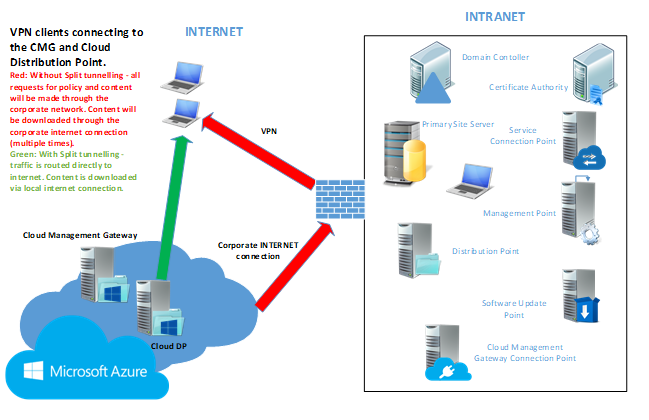
Let's first consider some CMG scenarios. First and foremost we deploy a CMG to manage internet-based clients. However, when the CMG is in place it can also be used to alleviate traffic on the VPN, subject to configuration of VPN split tunnelling. It is important to note the distinction between internet-based clients and those using the VPN. They are both remote clients but ConfigMgr handles them differently. Clients using the VPN will be deemed to be on the Intranet because they can communicate with a domain controller and a management point. Otherwise they are deemed to be on the Internet. 

Scenario 1: 


No additional boundary/boundary group configuration - CMG can manage devices truly on the internet that are not connected via VPN. Policy and content requests will be directly to internet with no chance of using corporate network.


Scenario 2: 


Configure boundary group for VPN subnets and associate with CMG for policy and content - VPN devices will connect to CMG for policy and Cloud distribution point for content. These requests will be made through the corporate network unless the traffic is routed directly to internet. Split tunnelling configuration is required to implement.


So what do we need to add to the split tunnelling configuration? It's very straightforward if your VPN configuration supports URLs. You need entries for the CMG and the storage account. The URLs are easy to find.


You'll find the service name in the properties of the CMG in the ConfigMgr console. You can see that the example from my lab is https://gerryhcmg.emslab.ie


What about the storage account? You'll find that in the Azure portal. See the example from my lab https://gerryhcmg.blob.core.windows.net/


You can also see this information in the log files on a ConfigMgr client. I have a test client installing software over CMG.


You can see the CMG URL in the CAS.log file.


Have a look in the DataTransferService.log file for the URL of the storage account. You'll see a line like:


Modifying download source from https://gerryhcmg.emslab.ie:443/downloadrestservice.svc/getcontentxmlsecure?pid=GH100009&cid=CONTENT_4E6083C7-411E-4CAD-AF2C-2633F6A4DCAA.1&tid=GUID:6B6A5684-4D64-44D8-ACD7-1CB28AB77307&iss=MEM.HAMPSON.LOCAL&alg=1.2.840.113549.1.1.11&st=2020-08-18T08:32:19&et=2020-08-18T16:32:19 to https://gerryhcmg.blob.core.windows.net/content-gh100009/Content_4e6083c7-411e-4cad-af2c-2633f6a4dcaa.1 (pre download)


What do you do if your VPN does not support split tunnel configuration via URL? It will be necessary to use IP addresses and ranges

The IP address of the CMG will not be known until it is deployed.


Then you'll find it in the Azure portal. It's 52.174.178.234 in my lab.

The IP ranges for Azure storage are published by Microsoft in a json file. However, it can be challenging to extract the information needed for your region. A Microsoft PFE (Ken Wygant) has published a community script to extract this information.


https://pfe.tips/get-azure-ip-ranges-your-cloud-management-gateway/


It gives you a list of IP ranges like this (this example is for EastUS2 region).


Then you can configure your split tunnel.


Thanks to Bryan Dam and Sandy Zeng for helping me to figure this out on the MVP distribution list.


I hope this helps. Until next time.....


Sunday, 5 July 2020

CMG and multiple root certificates

I was deploying a Cloud Management Gateway on a customer site recently and encountered this problem. This was a PKI deployment so I was adding internal root and intermediate certificates in the Settings page of the CMG wizard. 


I tried to satisfy the customer requirements but I was unable to add a third root certificate and received this error:

"You can only add two trusted root CAs and four intermediate CAs". 

I found that this was a limitation with CMG in ConfigMgr version 1902. This limit has been removed from version 1906 and later. 

The solution was obvious - upgrade the site to a later version.

I hope this helps. Until next time...…... 

Sunday, 21 June 2020

Cloud Management Gateway and Azure tags


I encountered this problem recently while deploying a CMG for a customer. Perhaps there was a better way for me to solve it but I'll explain the problem and how I worked around it. 

I got this error when creating the CMG. On my first try I was creating the resource group in the wizard.


“Error occurred when granting Contributor permission to the Azure AD app for resource group xxxxx. For more information, see SmsAdminUI.log".

The error wasn't clear to me. I knew that I was using a Global Administrator account, which was also an Owner of the Azure subscription.  I didn't really understand the problem until I looked at the logs.

In the Azure activity log I found this.


It told me that the resource I was creating was disallowed by an Azure policy that had been configured. The policy was called "Require a tag and it's value on resource" and meant that resources could not be created in the subscription without tags and their associated values. I found the same text in the SmsAdminUI.log file. That makes sense. It's good for housekeeping, right?

However, ConfigMgr couldn’t create the resource group as there was a policy in place enforcing Azure tags, which I couldn’t configure in the wizard. I figured that I should create the resource group manually and apply tags to it. However I got the exact same error when I re-ran the wizard.

I finally solved it and created the CMG by disabling the policy. Perhaps there was a more graceful way to solve it but it allowed me to continue.

Remember, in ConfigMgr, logs are your friend.

I hope this helps.

Until next time...........

Wednesday, 16 October 2019

SCCM Current Branch - Updates and Servicing issue

I've been working with a customer this week upgrading ConfigMgr Current Branch to 1906. However I encountered a problem even before I got started.


In the ConfigMgr console. I could see that 1906 was available to download.


However all options were greyed out.


I've had similar problems in the past and the trusty CMUpdateReset tool usually got me out of trouble. However not this time. I ran the tool but the problem persisted. 1906 disappeared from the console but when it reappeared the options were still greyed out. 


There were some fairly catastrophic messages in the dmpdownloader.log file.


WARNING: Failed to find a certificate matching the following thumbprint: .


ERROR: DmpDownloader:GetMessages: Failed to get messages.. Exception: System.AggregateException: One or more errors occurred. ---> Microsoft.Management.Services.Common.NotSupportedException: {~~  "_version": 3,~~  "Message": "An error has occurred - Operation ID (for customer support): 926c3692-bde5-4c8d-a6fa-7297f93d226a - Activity ID: fb69f026-d17f-4bed-8c57-4a7ded103f37 - Url: https://fef.msub03.manage.microsoft.com/Hybrid/StatelessConnectorService/StateMessages?$filter=Mode eq 1&$top=500"


I don't know if there was an easier or less dramatic way to solve this but I fixed it by removing and re-adding the Service Connection Point (this is a perfectly harmless operation).


Normal service was resumed and I could upgrade the site.

I hope this helps. Until next time.....

Wednesday, 10 April 2019

Deploying CMG with Enhanced HTTP (my experience)

I've configured a number of Cloud Management Gateways in the past, both for customers and in lab environments. In each case I've added a Management Point and configured it to use HTTPS. I've had to do that to manage Windows 7 clients over the Internet using traditional PKI. Recently I rebuilt my ConfigMgr lab to prepare demos for MMS 2019. As I'll just be using Windows 10 it has given me the opportunity to try Enhanced HTTP for the first time. I had a few problems to figure out along the way (with the help of Nick Hogarth, thanks Nick) but, now that it is configured correctly, everything works really well.

So what is Enhanced HTTP all about?

Traditionally we've used PKI to secure communication in ConfigMgr environments. Microsoft still recommends using HTTPS communication for all Configuration Manager communication. However they recognize that it can be challenging for some customers due to the overhead of managing PKI certificates. By using Azure AD integration we can simplify the process using Enhanced HTTP. In this scenario Azure AD-joined devices can communicate with a management point configured for HTTP. The site server generates a custom certificate for the management point allowing it to communicate via a secure channel. You can read about it here

The ConfigMgr admin doesn't need to do any IIS configuration as this is done in the background. We'll see that shortly.

Enhanced HTTP implementation steps

There are a number of steps which I implemented as follows.

Management Point configured for HTTP client communication


Enable the site option to Use Configuration Manager-generated certificates for HTTP site systems.


The SMS Role SSL Certificate was automatically configured and bound to port 443.


Onboard the site to Azure AD for cloud management


Using the Azure Services wizard.

Configure Azure AD User Discovery


Configure Hybrid AD Join

I was using domain joined devices for testing so I needed to configure Hybrid AD Join. Hybrid AD Join is configured using Azure AD Connect. A Service Connection Point is created during the process.


"Configure device options" was selected.


"Configure Hybrid Azure AD Join" was selected.


The SCP was created.

No further action should have been required because, once Hybrid Azure AD Join is enabled, devices will automatically join to Azure AD by default from Windows 10 Version 1607.

What issues did I experience?

I experienced a couple of issues during the process. In each case it's because I had forgotten to do something.

Firstly my test client could not be detected on the Internet. There were several errors in the CcmMessaging and LocationServices log files.


[CCMHTTP] ERROR: URL=http://GERRYHAMPSON.EMSLAB.IE/CCM_Proxy_MutualAuth/72057594037927939/ccm_system/request, Port=0, Options=1248, Code=87, Text=<null>


Successfully queued event on HTTP/HTTPS failure for server 'GERRYHAMPSON.EMSLAB.IE'.

Post to http://GERRYHAMPSON.EMSLAB.IE/CCM_Proxy_MutualAuth/72057594037927939/ccm_system/request failed with 0x87d00231.


CCMHTTP] ERROR: URL=https://GERRYHAMPSON.EMSLAB.IE/CCM_Proxy_MutualAuth/72057594037927939/SMS_MP/.sms_aut?SITESIGNCERT, Port=0, Options=1248, Code=0, Text=CCM_E_NO_CLIENT_PKI_CERT

Raising event:
instance of CCM_CcmHttp_Status
{
 ClientID = "GUID:76F79FF6-FA18-4E15-AA2F-9A4E71711ACC";
 DateTime = "20190410064418.902000+000";
 HostName = "GERRYHAMPSON.EMSLAB.IE";
 HRESULT = "0x87d00454";
 ProcessID = 3104;
 StatusCode = 0;
 ThreadID = 5368;
};


Also the CMG Analyser failed (it was OK when run against a certificate but not against an Azure AD User).


Failed to get ConfigMgr token with Azure AD token. Status code is '403' and status description is 'CMGConnector_Un-authorizedrequest'.
A possible reason for this failure is the CMG connection point failed to forward the message to the management point. The management point returned the following error: 'Un-authorizedrequest'. Check the specified Azure AD user is successfully discovered.

Troubleshooting


I had to figure out what was wrong and this is where Nick helped me. First I looked at the CMG Analyzer error. It looked pretty clear. "Check the specified Azure AD user is successfully discovered".


Also I could see errors in the CCM_STS.log file on the site server.

AAD user with ID 26800541-daf1-4334-aca0-c1a7d5d25a72 and SID S-1-5-21-3695679697-2106157007-715799775-1106 is not completely discovered

I knew that Azure AD Discovery was enabled but I still couldn't see any users. After I rebuilt the site I had forgotten to enable AD User Discovery. This is also a requirement.


I did that and could successfully run the analyser.

I also had an issue with the test device. It should have automatically joined Azure AD but it didn't.


See the output of the dsregcmd /status command. AzureADJoined: NO


The output also gave more information: The device object by the given ID is not found.

I couldn't understand that. I had configured Azure AD Join in Azure AD Connect which should have synchronized all the computer objects to Azure AD.


I had a look at the Azure AD Connect configuration again and realized that I had forgotten to select the Workstations OU to synchronise. I didn't need to before. I was only interested in users at the time.


After synchronization the device joined to Azure AD.


No more errors in the LocationServices.log file.....


...and in the ConfigMgr console the device was Online over the internet.


It could also be seen as a Hybrid Azure AD joined device in Azure AD.

I hope this helps someone else to configure the Enhanced HTTP solution. Until next time......


Tuesday, 9 April 2019

CMG Connection Analyzer error - NameResolutionFailure

This week I've been rebuilding my ConfigMgr lab in preparation for demos at MMS 2019. Last night I added the Cloud Management Gateway. I had all the prerequisites in place. I had my certificates already and the CNAME for my external domain was configured. You can read about the certificate and CNAME requirements here


All looked good with the CMG.


There were no errors in the CloudMgr.log file.


The Azure Cloud Service had been created.


My first hint of a problem was the CMG Connection Point status, which remained Disconnected. I figured it was time to run the trusty CMG Analyzer. It's brilliant for pin-pointing where the issue is.


Oops - a lot of errors there.

First one - Failed to connect to the CMG service. Unexpected response status code is NameResolutionFailure. For more information, see SmsAdminUI.log.


Configuration version of the CMG service should be 4.
Failed to get CMG service metadata. For more information, see SmsAdminUI.log.


Connection status of CMG connection point 'ConfigMgr.GH.LOCAL' is 'Not Connected'. Routing to primary site 'GH1' may not be fully functional. For more information, see SMS_CLOUD_PROXYCONNECTOR.log on the CMG connection point.


Failed to test the CMG channel. Check SmsAdminUI.log for more details.

Let's have a look at the log files.


The SmsAdminUI.log file doesn't help very much.


Neither does the SMS_CLOUD_PROXYCONNECTOR.log file. There is nothing there to help me.

So what was the first error again? Failed to connect to the CMG service. Unexpected response status code is NameResolutionFailure.

I previously configured a CNAME record so I didn't quite understand that.


That was the problem - no CNAME record.


This is a test domain and someone had been messing around with the DNS records. The CNAME record had been deleted. I added it back.


Then the CNAME lookup was successful (this took about 8 hours).


The CMG Connection Point connected with no further action from me.


The CMG Analyser then executed perfectly. We're back in business. 

I hope this helps. Until next time.....