Showing posts with label Defender. Show all posts

Saturday, 18 February 2023

Tips for onboarding servers to Defender for Endpoint

This week is all about Microsoft Defender for Endpoint (MDE). It's very easy to onboard workstations (Windows 10/11) to MDE. Intune does that automatically for you.


Navigate to Endpoint Security > Endpoint detection and response, create the policy and assign to all devices. 

There is a little more to do for servers as they are not supported for enrollment in Intune.

First, how would you know if your server was already onboarded to MDE? Obviously you could search for the server in the Microsoft 365 Defender portal, but how can you tell on the server itself?

Look at the services. If the Windows Defender Advanced Threat Protection Service (Service name: Sense) is Automatic and Running, then the server has been onboarded. The screenshot above shows a server that has not been onboarded. The behaviour and the onboarding steps are slightly different depending on the server operating system.

Note: when you use Microsoft Defender for Cloud to monitor servers, they are automatically onboarded to Defender for Endpoint. For this blog post, I'm assuming you are not using Defender for Cloud. 

Windows Server 2012R2

2012R2 servers do not include Defender Antivirus or Defender for Endpoint natively. You must install the unified Defender solution on these servers.

Onboarding steps are as follows:

  • Install the unified Defender client (this is downloaded from MDE portal). This installs Microsoft Defender Antivirus and the EDR sensor. It creates the Windows Defender Advanced Threat Protection Service. The service is not started and is set to Manual.
  • Install the unified Defender client update package (KB5005292 - download here). This updates the EDR sensor, which communicates with MDE.
  • Run the MDE onboarding script (this is downloaded from MDE portal). This onboards the server to MDE. It starts the Windows Defender Advanced Threat Protection Service and configures it to be Automatic.

Windows Server 2016

2016 servers natively include Defender Antivirus (as long as the Defender feature is added) but not Defender for Endpoint. You must install the unified Defender solution on these servers.

Onboarding steps are as follows:

  • Verify that the Defender feature is added and updated. Defender must also be turned on.
  • Run updateplatform hotfix (download here from Microsoft Malware Protection Center (MMPC)). This updates Defender to the latest version.
  • Install the unified Defender client (this is downloaded from MDE portal). This installs the EDR sensor. It creates the Windows Defender Advanced Threat Protection Service. The service is not started and is set to Manual.
  • Install the unified Defender client update package (KB5005292 - download here). This updates the EDR sensor, which communicates with MDE.
  • Run the MDE onboarding script (this is downloaded from MDE portal). This onboards the server to MDE. It starts the Windows Defender Advanced Threat Protection Service and configures it to be Automatic.
You will get this error if you don't update the platform before you install the unified Defender client.


Please update Windows Defender Antivirus (KB4052623) to the latest version.

Windows Server 2019 (and 2022)

These servers already include Defender AV and the EDR sensor. The Windows Defender Advanced Threat Protection Service already exists but is not running and is set to Manual.

There is one onboarding step:
  • Run the MDE onboarding script (this is downloaded from MDE portal). This onboards the server to MDE. It starts the Windows Defender Advanced Threat Protection Service and configures it to be Automatic.
The steps above can be automated using your server management solution. 

You've now onboarded the server and the Windows Defender Advanced Threat Protection Service is running. Where can you see the onboarding details?


You need to look in the registry. Navigate to HKEY_LOCAL_MACHINE\SOFTWARE\Microsoft\SenseCM. Here you can see the Tenant ID and enrollment status. You should see EnrollmentStatus = 1.

I hope this helps. Until next time......

Tuesday, 27 December 2022

Re-enabling Defender on Windows 2016 servers via command line

I've carried out a number of Microsoft Defender for Endpoint deployments recently. I find that workstations are easy enough to deal with but it can be a pain working with low level servers. Windows Defender shipped natively with Windows 2016 Servers and organizations came up with some pretty creative ways to stop Defender from running. In fairness, at the time, Defender caused some pretty serious CPU spikes when co-existing with a third party antivirus solution.

I've come across three scenarios in particular. They are easy enough to deal with in the UI but I just wanted to show how you can also deal with these using commands. This was essential for me when working at scale and using management tools to automate the solution.

Scenario 1: the Defender feature had been uninstalled.

The Defender features can be added back using the "Add Roles and Features wizard". Don't forget to add the sub-features as well.

Scenario 1 command line:

Dism /Online /Enable-Feature /FeatureName:Windows-Defender-Features

Dism /Online /Enable-Feature /FeatureName:Windows-Defender

Dism /Online /Enable-Feature /FeatureName:Windows-Defender-Gui

Don't forget to add a reboot step afterwards.

Scenario 2: Defender service had been disabled.


You'll be notified that the Defender service is stopped and you won't be able to start it. I found this scenario when Microsoft Defender Antivirus was disabled through Group Policy.


First make sure that you reverse this policy. Just set it to Not Configured, do not choose Disable.

Scenario 2 command line:

Then re-enable Defender using this command:

MpCmdRun.exe -wdenable

It must be executed from "C:\Program Files\Windows Defender" and you must add a step to reboot the system afterwards.


Scenario 3: Defender is turned off.


Essentially this means that Real-time protection is turned off.


It can be turned on in Settings > Windows Defender.

Scenario 3 command line:

You can turn on Real-time protection programatically using PowerShell

Set-MpPreference -DisableRealtimeMonitoring 0


You don't need a reboot for this one.

I hope this information is helpful to automate your Defender deployment. 

Until next time.....


Monday, 14 March 2022

Intune policy not applicable

This is a quick follow up to my recent post where I discussed an issue my customer was having with an unwanted reboot. We narrowed this down to Microsoft Defender Application Control in Microsoft Endpoint Manager, "Application control code integrity policies" being set, even to Audit Only. 

I referred my customer to Peter van der Woude's post, where Peter talks about creating a custom code integrity policy using OMA-URI and the Application Control CSP. I had previously tested the solution successfully was I was quite happy to recommend it. My customer also successfully tested the solution in their lab but ran into difficulty when implementing in a production pilot. The policy status for the pilot devices was "Not applicable". 

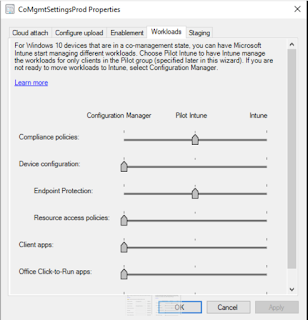
This was a little unusual but it was obvious when I figured out why. All testing was carried out in an Intune only environment. However, these devices were co-managed with the following settings.


The Endpoint Protection workload had been moved to Intune pilot. That worked well for Microsoft Defender policies. However the new policy (as per Peter's post) was a device configuration profile. This workload was still set to ConfigMgr and therefore the policy was not applicable to the devices. This was easily solved by moving the device configuration workload slider to Intune. Then the Intune policy applied as expected.

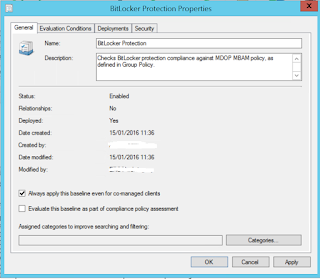
The only thing we had to worry about was that the customer was using some ConfigMgr configuration baselines and still wanted them managed by ConfigMgr. 


Luckily Microsoft provides a solution for that. We selected "Always apply this baseline even for co-managed clients".

I hope this helps if you encounter a similar situation.

Until next time......


Sunday, 20 February 2022

Microsoft Defender Application Control and the unwanted reboot

I came across this issue again this week on a customer site. Windows 10 computers were being rebooted without warning. 

You’re about to be signed out 

Windows will shut down in 10 minutes

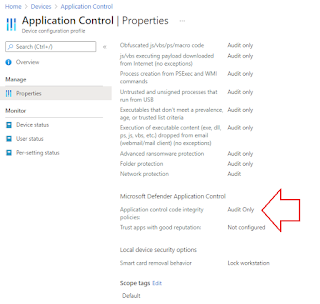
I narrowed this down to Microsoft Defender Application Control in Microsoft Endpoint Manager, "Application control code integrity policies" being set, even to Audit Only. 


This is created as a Windows 10 configuration profile, choosing the Endpoint Protection template, then selecting the Microsoft Defender Application Control.


If you use the tooltip and follow the "Learn more" link, you are directed to the Applocker CSP page, so clearly that's what is in use here. 

According to the Microsoft docs, prior to Windows 10 version 1709, Windows Defender Application Control was known as configurable code integrity (CCI). Interestingly, this is the only AppLocker setting that causes a reboot. It's well documented on the Applocker CSP page. 

"The AppLocker CSP will schedule a reboot when a policy is applied or a deletion occurs using the AppLocker/ApplicationLaunchRestrictions/Grouping/CodeIntegrity/Policy URI".

I can verify that the reboot occurs when you apply the policy but also when you remove it.

Some of my colleagues have suggested ways to avoid the reboot. 
  • Peter van der Woude talks about creating a custom code integrity policy using OMA-URI and the Application Control CSP.
  • Rudy Ooms talks about the WDAC wizard.
  • You can read about creating a new base policy in the official docs using the WDAC wizard. 
This reboot is not a problem when you configure the same setting with ConfigMgr.


In ConfigMgr, the WDAC wizard allows us to de-select the check box to enforce the required reboot.

I hope this helps.

Until next time.......