There are some really cool new authentication features in Azure and ADFS. Unfortunately they don't play very nicely with Windows Intune and they can be really difficult to troubleshoot if you don't know what the problem is. There are no log files that can point you in the right direction. It just doesn't work.
I've recently seen two of these issues on customer sites:
When you use Multi-Factor Authentication and enroll a device with Windows Intune, you receive the error “This request couldn’t complete”
Workaround: Turn off Windows Azure Multi-Factor Authentication for the Windows Azure subscription you use with Windows Intune.
(Edit 25th November 2014: Azure Multi-Factor Authentication is now supported by Intune)
Windows Phone 8.1 devices fail to enroll with Windows Intune when device authentication is enabled in ADFS
Workaround: Disable device authentication on the ADFS server by unchecking "Enable device authentication" in Edit Global Authentication Policy
The workarounds aren't too clever. The feature is not supported - turn it off.
Here is another one (although I haven't seen this one in action)
When you enroll a Windows 8.1 device that must authenticate to a proxy server, the enrollment process fails with no visible indication as to the cause of the failure
Workaround: For Windows 8.1 devices that must enroll on a network that requires use of an authenticated proxy server, configure and save the credentials for the proxy server prior to enrollment of the device.
These issues have been documented in the "Release Notes for Windows Intune"
http://technet.microsoft.com/en-us/library/jj662694.aspx

Gerry Hampson Device Management
Showing posts with label Windows 8 Phones. Show all posts
Showing posts with label Windows 8 Phones. Show all posts
Wednesday, 3 September 2014

Saturday, 30 August 2014
Alternate Login IDs cannot be used with ConfigMgr 2012 and Windows Intune
Back to ConfigMgr main menu
(Edit 17th May 2015: This issue has been resolved by Microsoft and Alternate Login IDs are now fully supported with the ConfigMgr/Intune hybrid solution. This involved updates to the Intune service. The WiKi article (referenced below) has been edited to reflect this. Thanks for the information Stefan Schörling and Jörgen Nilsson.)
I hope that this blog post helps other Consultants to avoid the trap that I fell into. "Alternate Login IDs" are a really cool new feature of Windows Server 2012 R2 Update. They are described in detail here
DirSync: Using Alternate Login IDs with Azure Active Directory
The process involves:
However, it doesn't work with the Unified Device Management solution of ConfigMgr 2012 and Intune. This is because ConfigMgr handles AD user accounts differently. When a user is first discovered all the AD attributes are committed to the ConfigMgr database. This includes the UPN (eg. gerry.hampson@contoso.local). When I add this user to my "Intune Users" collection this change cannot be synchronised to Intune. The CloudUserSync log tells us that the internal AD UPN is being used to sync to Azure. As the DirSync Direct Mapping is not involved in this process it fails - UserNotFound. Of course it does - gerry.hampson@contoso.local does not exist in Azure.
The article above has warned me that I might have a problem:
"If you are an InTune Hybrid customers using the SCCM Connector there may be additional configuration required. Please contact your Account representative for more information."
I contacted Microsoft CSS for this "additional configuration". They were aware of this shortcoming. There is no supported solution at this time - and no estimated time for a possible solution. The suggested workaround is to run a script on the ConfigMgr database to change the UPN for the user accounts to use the public routable domain. Clearly this is not supported so I don't think it's a great idea.
A recent customer engagement had several phases. Phase 1 was an Office 365 migration. They were very pleased to implement the new features so that UPNs did not have to be changed. Phase 2 was the ConfigMgr/Intune solution - guess what - UPNs now had to be changed. It's a real shame because Alternate Login IDs are a cracking new feature.
(Edit 17th May 2015: This issue has been resolved by Microsoft and Alternate Login IDs are now fully supported with the ConfigMgr/Intune hybrid solution. This involved updates to the Intune service. The WiKi article (referenced below) has been edited to reflect this. Thanks for the information Stefan Schörling and Jörgen Nilsson.)
I hope that this blog post helps other Consultants to avoid the trap that I fell into. "Alternate Login IDs" are a really cool new feature of Windows Server 2012 R2 Update. They are described in detail here
DirSync: Using Alternate Login IDs with Azure Active Directory
The process involves:
- Modifying the DirSync attribute flow for UserPrincipalName for provisioning/sync
- Leveraging the Alternate Login ID feature of AD FS for Single Sign-On authentication
However, it doesn't work with the Unified Device Management solution of ConfigMgr 2012 and Intune. This is because ConfigMgr handles AD user accounts differently. When a user is first discovered all the AD attributes are committed to the ConfigMgr database. This includes the UPN (eg. gerry.hampson@contoso.local). When I add this user to my "Intune Users" collection this change cannot be synchronised to Intune. The CloudUserSync log tells us that the internal AD UPN is being used to sync to Azure. As the DirSync Direct Mapping is not involved in this process it fails - UserNotFound. Of course it does - gerry.hampson@contoso.local does not exist in Azure.
The article above has warned me that I might have a problem:
"If you are an InTune Hybrid customers using the SCCM Connector there may be additional configuration required. Please contact your Account representative for more information."
I contacted Microsoft CSS for this "additional configuration". They were aware of this shortcoming. There is no supported solution at this time - and no estimated time for a possible solution. The suggested workaround is to run a script on the ConfigMgr database to change the UPN for the user accounts to use the public routable domain. Clearly this is not supported so I don't think it's a great idea.
A recent customer engagement had several phases. Phase 1 was an Office 365 migration. They were very pleased to implement the new features so that UPNs did not have to be changed. Phase 2 was the ConfigMgr/Intune solution - guess what - UPNs now had to be changed. It's a real shame because Alternate Login IDs are a cracking new feature.
Wednesday, 6 August 2014
Collecting IMEI from mobile devices
Back to ConfigMgr main menu
Back to MDM Menu
Previously with ConfigMgr 2012 and Windows Intune it had not been possible to collect the IMEI from mobile devices with regular inventory. This was a real issue for Mobile Device Administrators. The IMEI is crucial information to have when dealing with the device vendors and Telcos.
However, recently, Cory Ferro (Program Manager, Enterprise Client and Mobility - Microsoft) published an excellent workaround which allows you to retrieve the IMEI for Windows Phone 8.1 devices. You can find it here and it really works.
This is an extract from the article:
"Windows Phone 8.1 has added a CSP to allow a GET request for the device’s International Mobile Equipment Identity (IMEI), a unique identifier for a mobile device. Inventory collection of mobile device IMEIs is not enabled by default, however it is possible to retrieve the value of Configuration Service Providers (CSP) nodes through inventory, provided these nodes provide GET operations. The steps provided below show you how to define a new inventory class using MOF (which will use URIs for the nodes/properties of interest), and importing the new class into Configuration Manager. Refer to the Windows Phone 8.1 MDM protocol documentation for information on available CSPs and properties."
The basic steps required are:
1. Create a MOF file from the text published by Cory

2. Save the file xxxx.MOF

3. Import the MOF to ConfigMgr Inventory classes

4. Create and run the query (instructions in Cory's blog). You may have to wait for a short while for the information to populate (a couple of hours for me).

Back to MDM Menu
Previously with ConfigMgr 2012 and Windows Intune it had not been possible to collect the IMEI from mobile devices with regular inventory. This was a real issue for Mobile Device Administrators. The IMEI is crucial information to have when dealing with the device vendors and Telcos.
However, recently, Cory Ferro (Program Manager, Enterprise Client and Mobility - Microsoft) published an excellent workaround which allows you to retrieve the IMEI for Windows Phone 8.1 devices. You can find it here and it really works.
This is an extract from the article:
"Windows Phone 8.1 has added a CSP to allow a GET request for the device’s International Mobile Equipment Identity (IMEI), a unique identifier for a mobile device. Inventory collection of mobile device IMEIs is not enabled by default, however it is possible to retrieve the value of Configuration Service Providers (CSP) nodes through inventory, provided these nodes provide GET operations. The steps provided below show you how to define a new inventory class using MOF (which will use URIs for the nodes/properties of interest), and importing the new class into Configuration Manager. Refer to the Windows Phone 8.1 MDM protocol documentation for information on available CSPs and properties."
The basic steps required are:
1. Create a MOF file from the text published by Cory
2. Save the file xxxx.MOF
3. Import the MOF to ConfigMgr Inventory classes
4. Create and run the query (instructions in Cory's blog). You may have to wait for a short while for the information to populate (a couple of hours for me).
Monday, 30 June 2014
MDM in SCCM 2012 R2 - Extend Windows Intune trial
Back to ConfigMgr main menu
Back to MDM Menu
You can create a Windows Intune trial subscription for 30 days here
Previously, if you wanted to extend this trial you had to enlist the help of your Microsoft account manager and this was a bit of a process. Customers can now do this on their own. You can extend your trial by a further 60 days by calling customer support (you have to extend 30 and a further 30 - not 60 together). You must have global administrator access to your portal to verify your identity.
Edit 24th November 2014
Find your local number for Intune support here
http://technet.microsoft.com/en-US/jj839713.aspx
(((((Find your local CSS telephone number here
http://support.microsoft.com/gp/customer-service-phone-numbers/en-ie )))))
Under special circumstances you may be able to extend past the 90 days but this will not be the norm.
Back to MDM Menu
You can create a Windows Intune trial subscription for 30 days here
Previously, if you wanted to extend this trial you had to enlist the help of your Microsoft account manager and this was a bit of a process. Customers can now do this on their own. You can extend your trial by a further 60 days by calling customer support (you have to extend 30 and a further 30 - not 60 together). You must have global administrator access to your portal to verify your identity.
Edit 24th November 2014
Find your local number for Intune support here
http://technet.microsoft.com/en-US/jj839713.aspx
Under special circumstances you may be able to extend past the 90 days but this will not be the norm.
MDM in SCCM 2012 R2 - Windows 8.1 Phone
Back to ConfigMgr main menu
Back to MDM Menu
The procedure is exactly the same as for Windows 8 Phone until you are actually enrolling the phone. Instead of Settings > Company Apps you need Settings > Workplace

Windows 8.1 Phone

Navigate to Settings

Open Workplace

Click to Add and account.

Enter your email address as before (or more correctly - your AD account UPN).

Enter the Microsoft server name if required.
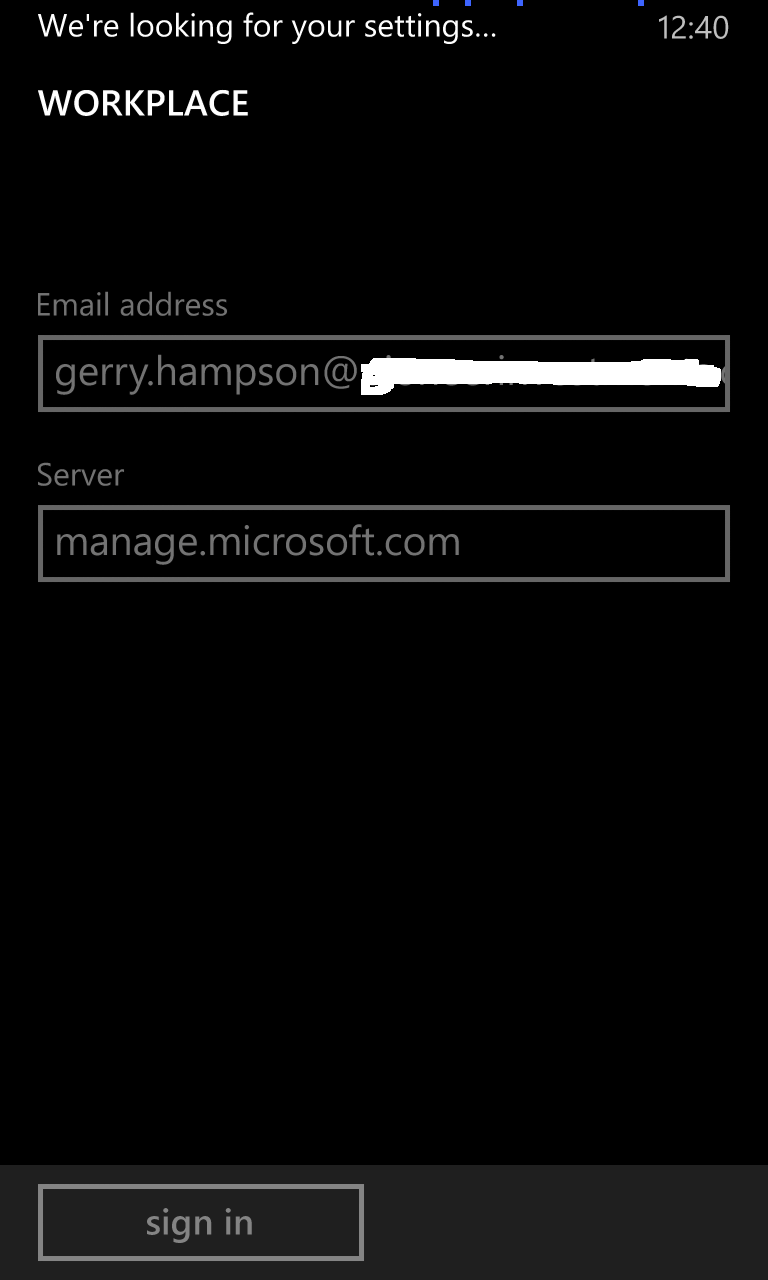
Windows 8.1 is connecting to Intune.

The device is enrolled. Install the Company App.


Double-click on the account to see synchronization. Policy is being downloaded.

Synchronization is complete. Compliance policies will soon be applied to the device.
Back to MDM Menu
The procedure is exactly the same as for Windows 8 Phone until you are actually enrolling the phone. Instead of Settings > Company Apps you need Settings > Workplace
Windows 8.1 Phone
Navigate to Settings
Open Workplace
Click to Add and account.
Enter your email address as before (or more correctly - your AD account UPN).
Enter the Microsoft server name if required.
Windows 8.1 is connecting to Intune.
The device is enrolled. Install the Company App.
Double-click on the account to see synchronization. Policy is being downloaded.
Synchronization is complete. Compliance policies will soon be applied to the device.
MDM in SCCM 2012 R2 - Device Collection Queries
Back to ConfigMgr main menu
Back to MDM Menu
Collection of Windows Phone 8 devices
select SMS_R_System.ResourceId, SMS_R_System.ResourceType, SMS_R_System.Name, SMS_R_System.SMSUniqueIdentifier, SMS_R_System.ResourceDomainORWorkgroup, SMS_R_System.Client from SMS_R_System inner join SMS_G_System_DEVICE_OSINFORMATION on SMS_G_System_DEVICE_OSINFORMATION.ResourceID = SMS_R_System.ResourceId where SMS_G_System_DEVICE_OSINFORMATION.Platform like "Windows Phone" and SMS_G_System_DEVICE_OSINFORMATION.Version like "8.0%"
Collection of Windows Phone 8.1 devices
select SMS_R_System.ResourceId, SMS_R_System.ResourceType, SMS_R_System.Name, SMS_R_System.SMSUniqueIdentifier, SMS_R_System.ResourceDomainORWorkgroup, SMS_R_System.Client from SMS_R_System inner join SMS_G_System_DEVICE_OSINFORMATION on SMS_G_System_DEVICE_OSINFORMATION.ResourceID = SMS_R_System.ResourceId where SMS_G_System_DEVICE_OSINFORMATION.Platform like "Windows Phone" and SMS_G_System_DEVICE_OSINFORMATION.Version like "8.1%"
Collection of Windows RT devices
select SMS_R_System.ResourceId, SMS_R_System.ResourceType, SMS_R_System.Name, SMS_R_System.SMSUniqueIdentifier, SMS_R_System.ResourceDomainORWorkgroup, SMS_R_System.Client from SMS_R_System inner join SMS_G_System_COMPUTER_SYSTEM on SMS_G_System_COMPUTER_SYSTEM.ResourceId = SMS_R_System.ResourceId where SMS_G_System_COMPUTER_SYSTEM.Model like "Surface%"
Collection of iPhones
select SMS_R_SYSTEM.ResourceID,SMS_R_SYSTEM.ResourceType,SMS_R_SYSTEM.Name,
SMS_R_SYSTEM.SMSUniqueIdentifier,SMS_R_SYSTEM.ResourceDomainORWorkgroup,
SMS_R_SYSTEM.Client from SMS_R_System inner join SMS_G_System_DEVICE_COMPUTERSYSTEM on SMS_G_System_DEVICE_COMPUTERSYSTEM.ResourceId = SMS_R_System.ResourceId where SMS_G_System_DEVICE_COMPUTERSYSTEM.DeviceModel like "%iphone%"
Collection of iPads
select SMS_R_SYSTEM.ResourceID,SMS_R_SYSTEM.ResourceType,SMS_R_SYSTEM.Name,
SMS_R_SYSTEM.SMSUniqueIdentifier,SMS_R_SYSTEM.ResourceDomainORWorkgroup,
SMS_R_SYSTEM.Client from SMS_R_System inner join SMS_G_System_DEVICE_COMPUTERSYSTEM on SMS_G_System_DEVICE_COMPUTERSYSTEM.ResourceId = SMS_R_System.ResourceId where SMS_G_System_DEVICE_COMPUTERSYSTEM.DeviceModel like "%ipad%"
Collection of Android devices
select SMS_R_System.ResourceId, SMS_R_System.ResourceType, SMS_R_System.Name, SMS_R_System.SMSUniqueIdentifier, SMS_R_System.ResourceDomainORWorkgroup, SMS_R_System.Client from SMS_R_System inner join SMS_G_System_DEVICE_OSINFORMATION on SMS_G_System_DEVICE_OSINFORMATION.ResourceID = SMS_R_System.ResourceId where SMS_G_System_DEVICE_OSINFORMATION.Platform like "Android%"
Back to MDM Menu
Collection of Windows Phone 8 devices
select SMS_R_System.ResourceId, SMS_R_System.ResourceType, SMS_R_System.Name, SMS_R_System.SMSUniqueIdentifier, SMS_R_System.ResourceDomainORWorkgroup, SMS_R_System.Client from SMS_R_System inner join SMS_G_System_DEVICE_OSINFORMATION on SMS_G_System_DEVICE_OSINFORMATION.ResourceID = SMS_R_System.ResourceId where SMS_G_System_DEVICE_OSINFORMATION.Platform like "Windows Phone" and SMS_G_System_DEVICE_OSINFORMATION.Version like "8.0%"
Collection of Windows Phone 8.1 devices
select SMS_R_System.ResourceId, SMS_R_System.ResourceType, SMS_R_System.Name, SMS_R_System.SMSUniqueIdentifier, SMS_R_System.ResourceDomainORWorkgroup, SMS_R_System.Client from SMS_R_System inner join SMS_G_System_DEVICE_OSINFORMATION on SMS_G_System_DEVICE_OSINFORMATION.ResourceID = SMS_R_System.ResourceId where SMS_G_System_DEVICE_OSINFORMATION.Platform like "Windows Phone" and SMS_G_System_DEVICE_OSINFORMATION.Version like "8.1%"
Collection of Windows RT devices
select SMS_R_System.ResourceId, SMS_R_System.ResourceType, SMS_R_System.Name, SMS_R_System.SMSUniqueIdentifier, SMS_R_System.ResourceDomainORWorkgroup, SMS_R_System.Client from SMS_R_System inner join SMS_G_System_COMPUTER_SYSTEM on SMS_G_System_COMPUTER_SYSTEM.ResourceId = SMS_R_System.ResourceId where SMS_G_System_COMPUTER_SYSTEM.Model like "Surface%"
Collection of iPhones
select SMS_R_SYSTEM.ResourceID,SMS_R_SYSTEM.ResourceType,SMS_R_SYSTEM.Name,
SMS_R_SYSTEM.SMSUniqueIdentifier,SMS_R_SYSTEM.ResourceDomainORWorkgroup,
SMS_R_SYSTEM.Client from SMS_R_System inner join SMS_G_System_DEVICE_COMPUTERSYSTEM on SMS_G_System_DEVICE_COMPUTERSYSTEM.ResourceId = SMS_R_System.ResourceId where SMS_G_System_DEVICE_COMPUTERSYSTEM.DeviceModel like "%iphone%"
Collection of iPads
select SMS_R_SYSTEM.ResourceID,SMS_R_SYSTEM.ResourceType,SMS_R_SYSTEM.Name,
SMS_R_SYSTEM.SMSUniqueIdentifier,SMS_R_SYSTEM.ResourceDomainORWorkgroup,
SMS_R_SYSTEM.Client from SMS_R_System inner join SMS_G_System_DEVICE_COMPUTERSYSTEM on SMS_G_System_DEVICE_COMPUTERSYSTEM.ResourceId = SMS_R_System.ResourceId where SMS_G_System_DEVICE_COMPUTERSYSTEM.DeviceModel like "%ipad%"
Collection of Android devices
select SMS_R_System.ResourceId, SMS_R_System.ResourceType, SMS_R_System.Name, SMS_R_System.SMSUniqueIdentifier, SMS_R_System.ResourceDomainORWorkgroup, SMS_R_System.Client from SMS_R_System inner join SMS_G_System_DEVICE_OSINFORMATION on SMS_G_System_DEVICE_OSINFORMATION.ResourceID = SMS_R_System.ResourceId where SMS_G_System_DEVICE_OSINFORMATION.Platform like "Android%"
Thursday, 19 June 2014
Empower People Centric IT Roadshow
I had the pleasure of presenting a session at the "Empower People Centric IT Roadshow" in Reading this week.

Here I am presenting the Unified Device Management session on behalf of the Windows Management User Group.
MVP Empower People Centric IT Roadshow
Here I am presenting the Unified Device Management session on behalf of the Windows Management User Group.
MVP Empower People Centric IT Roadshow
· June
17, 2014, 09:00 AM to 05:00 PM
· Microsoft
Campus, Thames Valley Park, Reading, Berkshire RG6 1WG
WMUG Hosts : MVP Empower People Centric IT
Roadshow
Join speakers
from WMUG and the outstanding MVP community in the UK and Ireland for this FREE
event and find out more about:
· How
IT can provide a consistent and personalised experience for users across a wide
range of devices.
· How
IT can keep corporate information protected
And how the
above can be achieved without adding unrealistic cost and complexity to the
business?
Throughout June
2014, MVPs will be delivering sessions in Edinburgh, Sunderland, Birmingham,
Bristol and Reading.
On Tuesday 17th
June WMUG will be hosting the Reading session of this roadshow to be
held at the Microsoft UK headquarters.
The agenda is as follows:
Time
|
Topic
|
9.30am
|
What is People Centric IT?
|
10.00am
|
Why Windows 8.1 and the devices it brings to life
|
11.00am
|
Windows XP End of Support
|
11.15am
|
Tea and Coffee
|
11.30am
|
Operating System Deployment in SCCM
|
12.15pm
|
Desktop and App Delivery with Virtual desktop Infrastructure
|
1.00pm
|
Lunch
|
2.00pm
|
Unified Device Management with SCCM + Windows Intune
|
2.45pm
|
Exploring bring your own device vs. choose your own device
|
3.30pm
|
Tea and Coffee
|
3.45pm
|
Access to corporate apps and date with work folders/dynamic access
control/RMS/Direct Access/VPN
|
4.15pm
|
Identity Management with Windows Server 2012 R2/AD/ADFS
|
5.00pm
|
Close
|
Subscribe to:
Posts (Atom)