Showing posts with label SCEP. Show all posts

Friday, 7 February 2025

Help, NDES is broken......

I was working with a new customer recently and they pointed out that they were having a problem with NDES. 

What is NDES? The Network Device Enrollment Service (NDES) is one of the role services of Active Directory Certificate Services (AD CS). NDES acts as a Registration Authority to enable devices running without domain credentials to get certificates from the internal Certificate Authority, based on the Simple Certificate Enrollment Protocol (SCEP).

Therefore the customer was unable to issue SCEP certificates via Intune and was unable to enforce 802.1x authentication to their network. 

An Intune managed Windows 10/11 client was a good place to start, in particular the event logs (Applications and Services Logs > Microsoft > Windows > DeviceManagement-Enterprise-Diagnostic-Provider > Admin). Event IDs 307 and 32 were repeating.

Event ID 307 - SCEP: FailedLogError Message : (SCEPInstallCertificateWithScepHelper:Failed to Initialize SCEP enrollment with NDES Server https://xxxxx.msappproxy.net/certsrv/mscep/mscep.dll/pkiclient , CA Cert thumbprint 'xxxx' and server certs)


Event ID 32 - SCEP: Certificate enroll failed. Result: (Internal server error (500)).


Just for kicks I opened a browser and navigated to the NDES server URL (from event ID 307). It gave me the same Internal Server Error (500) that I could see in event ID 32.


Next I had a look on the NDES server. The IIS log files can be found in the following folder: %SystemDrive%\inetpub\logs\logfiles\w3svc1. On 10th August we could see a status code of 200: This status indicates the connection with the NDES server is successful.


On 11th August we could see a status code of 500. This Microsoft troubleshooting guide tells me that Status code of 500 could mean that the IIS_IUSRS group might lack correct permissions (Impersonate a client after authentication).


However, I opened the Local Security Policy editor (secpol.exe), expanded Local Policies, and then selected User Rights Assignment. Double-clicking Impersonate a client after authentication in the right pane, I could see that the IIS_IUSRS group had the correct permissions.


The SCEP application pool was started so no problem there.


The Application event log on the server gave me some direction. Event IDs 10 and 2 were repeating. 
Event ID 10: The Network Device Enrollment Service cannot retrieve one of its required certificates (0x80070057). The parameter is incorrect.  


Event ID 2: The Network Device Enrollment Service cannot be started (0x80070057). The parameter is incorrect. 


This prompted me to look at the computer certificates on the NDES server. Sure enough, they had expired. There were three certificates to deal with:
  • Certificate based on the CEP Encryption certificate template
  • Certificate based on the Exchange Enrollment Agent (Offline Request) certificate template
  • Certificate based on the NDES SSL certificate template
Perfect, I just need to renew these certificates, right? Well not really.


I started with the CEP Encryption certificate, right-clicked on the certificate and selected Request Certificate with New Key.  


However the CEP Encryption template was not available so I couldn't "renew" the certificate. I needed a brand new certificate with exactly the same details.


I made a note of the Subject details for the existing certificate.


Now to create the new certificate, I right-clicked on the Personal folder and selected All Tasks > Request New Certificate.


I selected the Active Directory Enrollment Policy and clicked Next.


This time the CEP Encryption template was available. However more information was required. I clicked on the link to configure the certificate.


I added the same Subject details that I had captured earlier from the existing certificate, applied this and completed the wizard to generate the certificate.


The certificate was created with excessive permissions for the service account. I clicked Manage Private Keys.....


.... and unchecked the box for Full Control for the service account.

Next up is the NDES SSL Certificate. 


It's the same process as above except this time we use a different template. Don't forget to remove the Full Control permissions from the service account when you are finished.

Last but not least we get to the certificate based on the Exchange Enrollment Agent (Offline Request) certificate template. The process to generate this certificate is a little different than the others. Nickolaj Andersen has published the steps in a good post here. Please follow these steps to generate the third certificate. They are pretty straightforward.

I executed an IIS reset and figured that I was good to go.


The Network Device Enrollment Service policy module started successfully.


NDES looked to be functioning correctly.


Happy days, the NDES service finally started. But alas, certificates were still not being issued. There were still errors in the clients event log referring to "BadGateway: This corporate app can't be accessed". 


Opening a browser and navigating to the NDES URL gave the same information but also showed that the source of this error was the Azure AD Application Proxy. From that I figured that there was a communication error between the AAD Application proxy and the NDES server. 


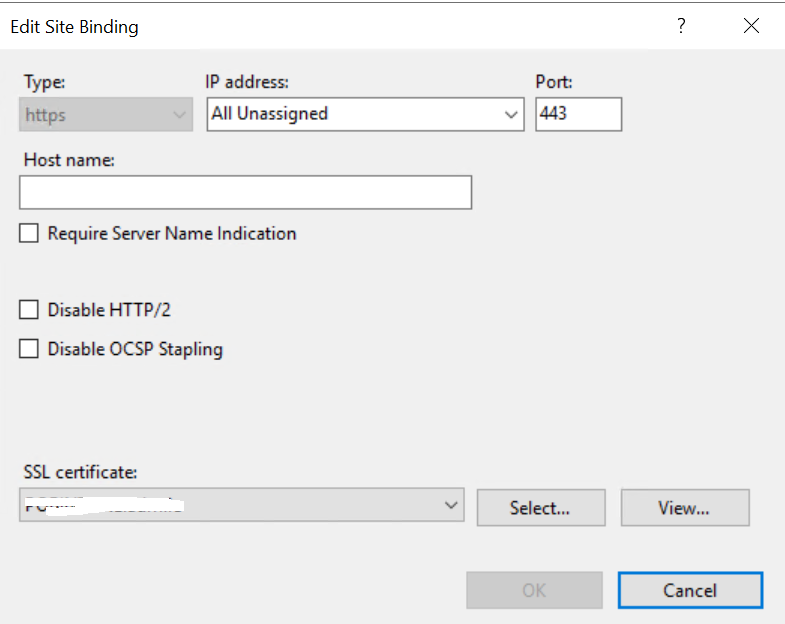
I remembered that I hadn't reconfigured the Site Bindings in IIS to use the new NDES SSL certificate. Once I did that and executed another IIS Reset, the certificates started to fly and the customer was back in business with SCEP and 802.1x authentication.

I hope this helps. Until next time......


Thursday, 21 August 2014

ConfigMgr 2012 / SCCM 2012 SCEP Troubleshooting

Back to Endpoint Protection menu

Back to ConfigMgr 2012 menu

The best SCEP troubleshooting information that I've encountered can be found in a single TechNet blog post by Mary Hutson. It is a collection of the top Microsoft Support solutions for the most common issues experienced when using System Center 2012 Endpoint Protection and it is updated quarterly.

It contains information and solutions in the following areas:

  • Solutions related to malware not cleaned, detected, or quarantined
  • Solutions related to SCEP Client Problems
  • Solutions related to Definition deployment issues
  • Solutions related to Client Policy editing, policy deployment, or policy adherence
  • Solutions related to Client Application compatibility (another application has problems)

You can find the blog post here.


http://blogs.technet.com/b/topsupportsolutions/archive/2014/02/04/top-support-solutions-for-system-center-endpoint-protection-2012.aspx 


Monday, 27 January 2014

MDM in SCCM 2012 R2 - Legacy Devices

Back to ConfigMgr main menu         
 
Back to MDM Menu

We previously discussed the devices that can be enrolled by ConfigMgr 2012 R2

Windows Phone 8
iOS 6.0 or later
Android 4.0 or later
Windows 8 RT, Windows 8.1 RT
Windows 8.1 non-domain joined.
 

You can use the Exchange Server Connector when you want to manage mobile devices that connect to Exchange Server (on-premises or online- Exchange 2010 SP1 or later) by using the Microsoft Exchange ActiveSync protocol, and you cannot enrol them by using Configuration Manager.

When you manage mobile devices by using the Exchange Server connector, this does not install the Configuration Manager client on the mobile devices. Some management functions are therefore limited eg. you cannot install software or use configuration items.


ConfigMgr 2012 R2 also supports legacy management for Windows Mobile, and Windows CE when you install the Configuration Manager mobile device legacy client. Features for these mobile devices vary by platform and client type.


Exchange Server Connector

Navigate to Administration > Hierarchy Configuration.


See Exchange Server Connectors.


Right click and choose to "Add Exchange Server".


Specify the URL for your Exchange Client Access Server (CAS).


Specify the domain account to connect to Exchange. Note the permissions that are required - quite a few. It can be easier just to make this account Exchange Enterprise Administrator.


Select the options you require.


Click Next. You can configure mobile device settings afterwards. Note that settings configured here will override settings that are configured in the Default Exchange ActiveSync mailbox policy.


Click Next to create the connector.


Close the wizard.


See new Exchange Server Connector.


Right click and "Synchronize Now".


Verify success and check for errors in the EasDisc.log file.


Devices can now be seen in the ConfigMgr console. Note the Exchange symbol confirming that the devices are being managed by the Exchange Connector.


Properties of a device. Note the Agent Name.

Legacy Client

ConfigMgr 2012 R2 supports legacy management for Windows Mobile, and Windows CE when you install the Configuration Manager mobile device legacy client. Features for these mobile devices vary by platform and client type.


You must install the mobile device legacy client by using a package and program. This solution also requires PKI certificates that must be installed independently from ConfigMgr.

This solution supports:

Windows CE 5.0, 6.0 and 7.0
Windows Mobile 6.0 

Friday, 1 November 2013

ConfigMgr 2012 / SCCM 2012 Anti-Virus exclusions

Back to Endpoint Protection menu

Back to main menu

When you install any Anti-Virus product on one of your ConfigMgr servers you must apply AV exclusions to avoid performance and functionality issues.

Also, if you are using SCEP you need to apply exclusions to your SCEP clients.  
These two blogs contain all the information you need.


Clifton Hughes

http://blogs.technet.com/b/systemcenterpfe/archive/2013/01/11/updated-system-center-2012-configuration-manager-antivirus-exclusions-with-more-details.aspx


Peter Daalmans 


http://www.systemcenterblog.nl/2012/05/09/anti-virus-scan-exclusions-for-configuration-manager-2012/


Saturday, 31 August 2013

Config Mgr 2012 Endpoint Protection: Definition Updates

Back to Endpoint Protection menu

Back to ConfigMgr 2012 menu

We previously installed the SCEP 2012 client on the devices in our test collection. Now we must ensure that the definition files remain up-to-date on these clients. We do this by integration with the software updates component of ConfigMgr.

We have already configured the Software Update Point to deliver Windows and Office software updates to our endpoints. We will now extend this functionality.

Navigate to Administration > Site Configuration > Sites.

Select your Site and click "Configure Site Components" on the ribbon above. Choose Software Update Point.

Navigate to the Classifications tab.


Choose Definition Updates.


Navigate to the Products tab and choose Forefront Endpoint Protection 2010 (the catalog has not yet been updated to be called SCEP 2012). Click Apply and OK to complete the configuration.


Now manually synchronise with the Microsoft catalog to download the latest definition files. Navigate to Software Library > Software Updates > All Software Updates.

Right click and choose "Synchronise Software Updates". Monitor the download using wsyncmgr.log.


See FEP 2010 chosen and sync starting.


See Definition updates being synchronised and process completing.


See Definition Updates now available in the console (filter by FEP 2012).

We will now create an Automatic Deployment Rule so that the definition updates can be downloaded and deployed automatically. We don't want to have to do this manually each week.

Navigate to Software Library > Software Updates > Automatic Deployment Rules


Right click and choose to "Create Automatic Deployment Rule"


The Create Automatic Deployment Rule Wizard starts. Enter a Name for the rule and then choose a collection (I have used my test collection). Leave the default "Add to an existing Software Update Group".
 Make sure that the "Enable the deployment after the rule is on" is checked. Click Next to continue.


Choose defaults and click Next to continue.


Add Property Filters - Product and Update Classification. Choose FEP 2010 and "Definition Updates or Updates". Click Next to continue.


Choose to run the rule after any SUP sync. Click Next to continue.


Choose "As soon as possible" as the deadline. We want the definition updates to be applied immediately. Click Next to continue.


Click Next.


Click Next.


Click Next.


Choose to create a new deployment package. The source folder must exist and be empty. Click Next to continue.


Choose DP and click Next.


Click Next.


Choose your language and click Next.


Review the summary and click Next to create the ADR.


The ADR has been created. Click Close to exit the wizard.


Note the User Experience configuration for the ADR - I want to see what's going on in my test.


The ADR is configured to run automatically after each scheduled synchronisation but let's run it now for the sake of testing. Right click the rule and choose "Run Now".


Click OK to the pop-up message and the rule is now running.


Monitor progress using the ruleengine.log file. See the rule starting.


See deployment package folder being populated.


Content being downloaded.


Software Update Group does not exist so the rule creates it.


See the Software Update Group.


and the contents of the SUG.


Navigate to Monitoring > Deployments

Look at the progress of the ADR.

Our test client has received the deployment.


Verify the "before and after" definition files on the client.