Saturday, 27 August 2022

Defender for Endpoint - Onboarding status column missing

I came across this on a customer site last week. The Onboarding status column was missing in the Microsoft 365 Defender portal for all administrators, although they had been granted the Security Administrator role.

Navigate to Assets > Devices and you can see that the column is missing. It should be between Sensor health state and Last device update (by default).


I found that the reason for this was that Device discovery was disabled (Settings > Endpoints > Advanced features).


Turning on Device discovery solved the problem.


The Onboarding status column was restored.


You can see the importance of this column.


We can see if devices have been onboarded. If not we can see if they are unsupported by Defender for Endpoint or just not onboarded (Can be onboarded). This will require some action.


The fix makes sense. We are sort of told about this limitation when we disable Device discovery.

I hope this helps of you find yourself in the same situation. Until next time....


Sunday, 19 June 2022

We can't activate Windows on this device

I encountered this problem recently while carrying out Windows 10 Autopilot testing on a customer site. My test device would step up from Windows 10 Professional to Enterprise but would not activate.


I could see the error: We can't activate Windows on this device as we can't connect to your organization's activation server. Error code 0x8007232B.


Running slmgr /dli on the device showed me that the currently installed operating system was expecting to be activated using volume licensing (MAK key). This isn't expected when provisioning devices directly from the vendor through Autopilot. However this was a test device so I figured it was re-imaged in the past.


Running wmic path SoftwareLicensingService get OA3xOriginalProductKey from a command prompt gave me what I needed. This displays the Windows product key embedded in the computer’s firmware. This is the original Windows key that shipped with the device.

I selected Change Product Key at the Activation window.


I entered the original product key and clicked Next.


I clicked Activate.


Windows was activated with a digital license. We wouldn't normally expect to see this problem with devices shipped directly from a vendor. However it could come in handy during customer testing in order to validate the process.

Until next time....

Wednesday, 1 June 2022

BitLocker waiting for activation

This is a quick blog post describing an annoying issue I encountered while developing a Windows 10 Autopilot process for a customer. My BitLocker policy (MEM > Endpoint Security > Disk encryption) reported as Succeeded and the recovery key was escrowed to Azure Active Directory. 


However, all was not well in the BitLocker Drive Encryption applet in Control Panel. I had the yellow exclamation warning icon with the message "Windows (C:) BitLocker waiting for activation".


The event log gave me an idea where to look. "Failed to enable Silent Encryption. Group Policy settings require the creation of a recovery key". This was Azure AD only so the Group Policy reference didn't make much sense. However it made me look for anything related to creating a recovery key in my BitLocker policy.


I found it here. I had set Recovery key file creation to Required.

What does this do? According to the tooltip "Setting this to Allow will allow an admin user to create a 256-bit recovery key file manually. Setting this to Require will require an admin user to create a 256-bit recovery key file manually. Setting this to Deny will disallow any admin user from creating a 256-bit recovery key file manually. BitLocker silent enablement requires this setting configured as Deny or Allow". I didn't want this to be required.


Changing this setting to Allowed did the trick and the device was encrypted successfully.

I hope this helps.

Until next time.......


Monday, 14 March 2022

Intune policy not applicable

This is a quick follow up to my recent post where I discussed an issue my customer was having with an unwanted reboot. We narrowed this down to Microsoft Defender Application Control in Microsoft Endpoint Manager, "Application control code integrity policies" being set, even to Audit Only. 

I referred my customer to Peter van der Woude's post, where Peter talks about creating a custom code integrity policy using OMA-URI and the Application Control CSP. I had previously tested the solution successfully was I was quite happy to recommend it. My customer also successfully tested the solution in their lab but ran into difficulty when implementing in a production pilot. The policy status for the pilot devices was "Not applicable". 

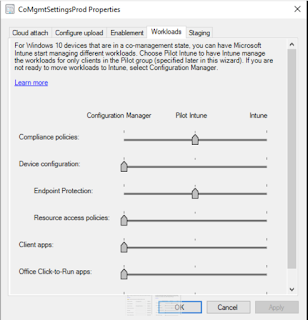
This was a little unusual but it was obvious when I figured out why. All testing was carried out in an Intune only environment. However, these devices were co-managed with the following settings.


The Endpoint Protection workload had been moved to Intune pilot. That worked well for Microsoft Defender policies. However the new policy (as per Peter's post) was a device configuration profile. This workload was still set to ConfigMgr and therefore the policy was not applicable to the devices. This was easily solved by moving the device configuration workload slider to Intune. Then the Intune policy applied as expected.

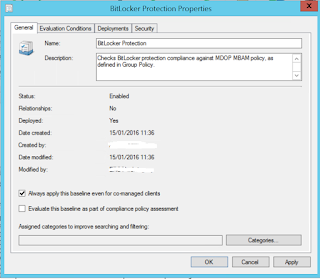
The only thing we had to worry about was that the customer was using some ConfigMgr configuration baselines and still wanted them managed by ConfigMgr. 


Luckily Microsoft provides a solution for that. We selected "Always apply this baseline even for co-managed clients".

I hope this helps if you encounter a similar situation.

Until next time......


Sunday, 20 February 2022

Microsoft Defender Application Control and the unwanted reboot

I came across this issue again this week on a customer site. Windows 10 computers were being rebooted without warning. 

You’re about to be signed out 

Windows will shut down in 10 minutes

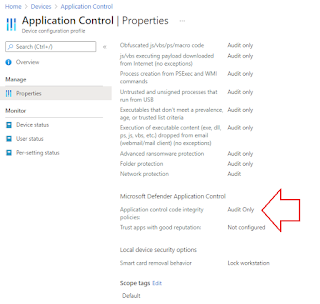
I narrowed this down to Microsoft Defender Application Control in Microsoft Endpoint Manager, "Application control code integrity policies" being set, even to Audit Only. 


This is created as a Windows 10 configuration profile, choosing the Endpoint Protection template, then selecting the Microsoft Defender Application Control.


If you use the tooltip and follow the "Learn more" link, you are directed to the Applocker CSP page, so clearly that's what is in use here. 

According to the Microsoft docs, prior to Windows 10 version 1709, Windows Defender Application Control was known as configurable code integrity (CCI). Interestingly, this is the only AppLocker setting that causes a reboot. It's well documented on the Applocker CSP page. 

"The AppLocker CSP will schedule a reboot when a policy is applied or a deletion occurs using the AppLocker/ApplicationLaunchRestrictions/Grouping/CodeIntegrity/Policy URI".

I can verify that the reboot occurs when you apply the policy but also when you remove it.

Some of my colleagues have suggested ways to avoid the reboot. 
  • Peter van der Woude talks about creating a custom code integrity policy using OMA-URI and the Application Control CSP.
  • Rudy Ooms talks about the WDAC wizard.
  • You can read about creating a new base policy in the official docs using the WDAC wizard. 
This reboot is not a problem when you configure the same setting with ConfigMgr.


In ConfigMgr, the WDAC wizard allows us to de-select the check box to enforce the required reboot.

I hope this helps.

Until next time.......