Tuesday, 20 October 2020

Managing Windows Virtual Desktops with Microsoft Endpoint Manager

Unsurprisingly, I have spent a lot of time recently deploying WVD solutions. In this blog post I want to highlight the MEM features that you can use to manage these desktops, especially in regard to Windows 10 multi-session. At the time of writing Configuration Manager 2006 in the latest production version.

For performance reasons ConfigMgr disables user policies on Windows 10 multi-session devices. This only happens with new client installations (1906 and later). If you upgraded the client from a previous version (pre 1906) then user policies will still be enabled. There may, of course, be a situation where you want to enable user policies and will accept any performance hit.


Open the Client Policy tab of Client Settings and choose "Enable user policy for multiple user sessions"


In versions 2006 and later, Windows 10 multi-session is now available in the list of supported versions for requirement rules. This is very useful when targeting FSLogix installations and registry settings.

If you previously selected the top-level Windows 10 platform, this action automatically selected all child platforms. The new platform isn't automatically selected. If you want to add Windows 10 multi-session, manually select it in the list.

Notes:
  • Currently Intune does not support Windows 10 multi-session but development work is actively being carried out.
  • Co-management is not supported on a client running Windows 10 multi-session.

These are exciting new MEM features with more to come. I hope this helps.

Until next time.......


Sunday, 27 September 2020

iOS VPP App installation errors with Intune

I recently conducted an Intune pilot where Intune was integrated with Apple Business Manager. This allowed us to synchronize apps purchased through the Apple Volume Purchase Program (VPP). VPP simplifies the process of purchasing and deploying iOS apps.


Apps were synchronized and appeared in the Intune portal where they could assigned to groups of users.


However there were errors when the apps were installed on the test devices. There were two specific errors:

Can't find VPP license for app (0x87D13B95)

VPP App licensing pending user consent. Ensure the user has accepted the VPP management invite. (0x87D13B92)

Both errors referred to app licensing so I was pretty sure that the problem was with how the apps were assigned in Intune.

The apps were configured for device licensing in Apple Business Manager. VPP Device Assignment grants app licenses directly to a device, identifying it by serial number. This makes VPP Device Assignment the best option to use when you do not want to associate your apps to end user's Apple ID. The apps install completely silently with VPP Device Assignment.


However the apps were assigned with User licensing in Intune. 

Apps that were assigned as "Required" were straightforward to fix.


We just had to edit the assignment and choose Device licensing


Apps that were assigned as "Available" were not as straightforward.


The licensing options were greyed out. 

In this case you must remove the assignment and start again. 


This time edit the assignment before saving it and you can choose Device licensing.


This solved both problems and the apps installed correctly.
 
Note that User licensing is the default setting and you have to change it to Device licensing. For Available apps you must change it when you create the assignment and before you save it. For Required apps you can edit the setting afterwards.

I hope this helps.

Until next time......

Sunday, 30 August 2020

Block apps from running on fully managed Android devices

My customer is using Microsoft Intune to manage Android devices (Samsung A51) which have been enrolled as "fully managed" devices. We have a device configuration profile in place to manage the device restriction settings. The customer also wants to block consumer and system apps that are pre-installed by the OEM and gave us a list of apps.

First I looked at a restricted apps policy. This is used to allow or prevent specific apps on devices. It is supported on Android and Samsung Knox Standard devices but is only available for "device administrator" management.


Next I decided to look at uninstall packages for the apps. I created packages for some of the apps based on their URL in the Google Play Store. Then I assigned the packages as Uninstall to the Android device group. This worked well but unfortunately, not all the apps were available in the Play Store, so this was an incomplete solution.

I found the answer with Android Enterprise system apps.


This allowed me to create the app packages using the Package Name, with no reference to the Play Store. Every Android app has a registered package name. You just have to be able to find it.

This search link will give you details on package names for all system apps pre-installed on many Samsung models. I found everything I needed and was able to create the uninstall packages.
  • Navigate to the Endpoint Manager admin center to create the apps.
  • Click Apps > All Apps > Add
  • For the App Type, look at the bottom option and choose Android Enterprise system app.

  • Click Select to commence the Add App wizard.

  • This is where you enter the app details. Pay particular attention to the Package name. It must be entered correctly. The tooltip tells us to contact the device manufacturer to get the system apps package name of the format com.example.app. Click Next to continue.
  • You only have two options on the Assignments page. To enable an app, assign the system app as Required. To disable an app, assign the system app as Uninstall. System apps cannot be assigned as available. Select the assignment groups and click Next.
  • Review and create the app.
I was able to prevent the apps in the table below from running and satisfy the customer requirement.

App

Package Name

Netflix

com.netflix.mediaclient

Galaxy Store

com.sec.android.app.samsungapps

Verizon Call Filter

com.vzw.ecid

Verizon Cloud

com.vcast.mediamanager

Verizon Digital Secure (Safe)

com.securityandprivacy.android.verizon.vms

My Verizon

com.vzw.hss.myverizon

AR Zone

com.ARZone.arzone

Bixby Voice 

com.samsung.android.bixby.agent

Bixby Voice Stub

com.samsung.android.bixby.agent.dummy

Bixby Home

com.samsung.android.app.spage

Bixby Service

com.samsung.android.bixby.service

Bixby Vision Framework

com.samsung.android.bixbyvision.framework

Game Launcher

com.yujimny.android.gamelauncher

Samsung Internet

com.sec.android.app.sbrowser


I hope this helps. Until next time....

Tuesday, 18 August 2020

CMG and VPN split tunnelling

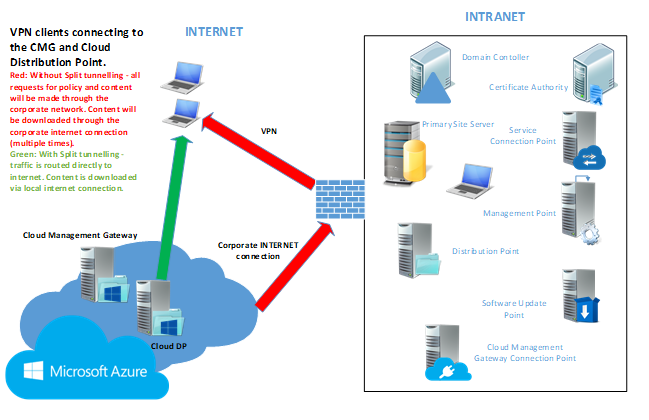
Let's first consider some CMG scenarios. First and foremost we deploy a CMG to manage internet-based clients. However, when the CMG is in place it can also be used to alleviate traffic on the VPN, subject to configuration of VPN split tunnelling. It is important to note the distinction between internet-based clients and those using the VPN. They are both remote clients but ConfigMgr handles them differently. Clients using the VPN will be deemed to be on the Intranet because they can communicate with a domain controller and a management point. Otherwise they are deemed to be on the Internet. 

Scenario 1: 


No additional boundary/boundary group configuration - CMG can manage devices truly on the internet that are not connected via VPN. Policy and content requests will be directly to internet with no chance of using corporate network.


Scenario 2: 


Configure boundary group for VPN subnets and associate with CMG for policy and content - VPN devices will connect to CMG for policy and Cloud distribution point for content. These requests will be made through the corporate network unless the traffic is routed directly to internet. Split tunnelling configuration is required to implement.


So what do we need to add to the split tunnelling configuration? It's very straightforward if your VPN configuration supports URLs. You need entries for the CMG and the storage account. The URLs are easy to find.


You'll find the service name in the properties of the CMG in the ConfigMgr console. You can see that the example from my lab is https://gerryhcmg.emslab.ie


What about the storage account? You'll find that in the Azure portal. See the example from my lab https://gerryhcmg.blob.core.windows.net/


You can also see this information in the log files on a ConfigMgr client. I have a test client installing software over CMG.


You can see the CMG URL in the CAS.log file.


Have a look in the DataTransferService.log file for the URL of the storage account. You'll see a line like:


Modifying download source from https://gerryhcmg.emslab.ie:443/downloadrestservice.svc/getcontentxmlsecure?pid=GH100009&cid=CONTENT_4E6083C7-411E-4CAD-AF2C-2633F6A4DCAA.1&tid=GUID:6B6A5684-4D64-44D8-ACD7-1CB28AB77307&iss=MEM.HAMPSON.LOCAL&alg=1.2.840.113549.1.1.11&st=2020-08-18T08:32:19&et=2020-08-18T16:32:19 to https://gerryhcmg.blob.core.windows.net/content-gh100009/Content_4e6083c7-411e-4cad-af2c-2633f6a4dcaa.1 (pre download)


What do you do if your VPN does not support split tunnel configuration via URL? It will be necessary to use IP addresses and ranges

The IP address of the CMG will not be known until it is deployed.


Then you'll find it in the Azure portal. It's 52.174.178.234 in my lab.

The IP ranges for Azure storage are published by Microsoft in a json file. However, it can be challenging to extract the information needed for your region. A Microsoft PFE (Ken Wygant) has published a community script to extract this information.


https://pfe.tips/get-azure-ip-ranges-your-cloud-management-gateway/


It gives you a list of IP ranges like this (this example is for EastUS2 region).


Then you can configure your split tunnel.


Thanks to Bryan Dam and Sandy Zeng for helping me to figure this out on the MVP distribution list.


I hope this helps. Until next time.....


Sunday, 5 July 2020

CMG and multiple root certificates

I was deploying a Cloud Management Gateway on a customer site recently and encountered this problem. This was a PKI deployment so I was adding internal root and intermediate certificates in the Settings page of the CMG wizard. 


I tried to satisfy the customer requirements but I was unable to add a third root certificate and received this error:

"You can only add two trusted root CAs and four intermediate CAs". 

I found that this was a limitation with CMG in ConfigMgr version 1902. This limit has been removed from version 1906 and later. 

The solution was obvious - upgrade the site to a later version.

I hope this helps. Until next time...…...